Selection Ribbon Tab
Overview
Actions that can be applied to the Selection layer. The Selection is one of three main segmentation layers (Model, Selection, Mask) which can be used in combination with other layers. See more about segmentation layers in the Data layers section.

Convert Section
Selection→Mask
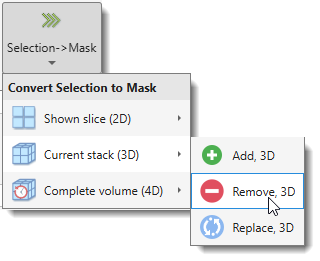
Transfers the Selection layer into the Mask layer. The main button opens a dropdown to choose the dataset extent and the transfer mode.
| Scope | Add | Remove | Replace |
|---|---|---|---|
| Shown slice (2D) | Add, 2D | Remove, 2D | Replace, 2D |
| Current stack (3D) | Add, 3D | Remove, 3D | Replace, 3D |
| Complete volume (4D) | Add, 4D | Remove, 4D | Replace, 4D |
- Add — adds selected pixels/voxels to the existing Mask.
- Remove — removes selected pixels/voxels from the existing Mask.
- Replace — replaces the Mask with the Selection.
Selection to buffer
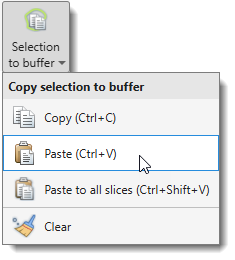
Copies the Selection of the currently displayed slice to a temporary buffer for later pasting.
| Action | Shortcut | Description |
|---|---|---|
| Copy | Ctrl+C | Copy the current slice Selection to the buffer. |
| Paste | Ctrl+V | Paste the buffer onto the current slice. |
| Paste to all slices | Ctrl+Shift+V | Paste the buffer onto every slice in the dataset. |
| Clear | — | Clear the buffer (does not affect the Selection, Mask, or Model). |
Tools Section
Morphological 2D/3D operations
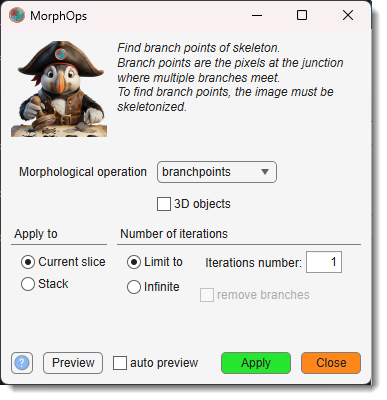
Opens the Morphological Operations dialog pre-set to the chosen operation. All operations work on the Selection layer.
See MATLAB's bwmorph, bwmorph3, and bwskel for full details.
Demonstration
Skeleton for 3D objects
| Item | Operation | Description |
|---|---|---|
| Branch points | branchpoints |
Detects branch points of skeleton lines. |
| Diagonal fill | diag |
Fills diagonal connections to remove 8-connectivity artifacts. |
| Endpoints | endpoints |
Detects endpoints of skeleton lines. |
| Skeleton | skel |
Reduces objects to 1-pixel-wide skeletons. |
| Spur | spur |
Removes small spurs (short branches) from skeletons. |
| Thin | thin |
Iteratively thins objects without removing endpoints. |
| Ultimate erosion | bwulterode |
Erodes objects to their ultimate eroded points (local maxima of the distance transform). |
Invert
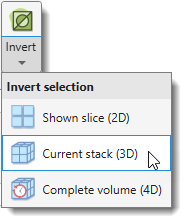
Inverts the Selection layer — selected pixels become background and background becomes selected. Clicking the main button inverts the complete volume (4D). The dropdown selects the scope:
- Shown slice (2D) — inverts the selection on the currently displayed slice only.
- Current stack (3D) — inverts the selection across all slices in the current Z-stack.
- Complete volume (4D) — inverts the selection across the entire dataset including all time points.
Expand to mask border

Expands each selected area to fill the containing mask region — selected pixels grow outward until they reach the boundary of the Mask layer.
Interpolate
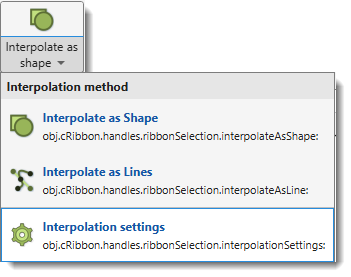
Reconstructs the Selection layer on empty slices between two annotated slices. Clicking the main button runs interpolation using the active method (shortcut I); the icon reflects that method.
The dropdown switches the method or opens its settings:
- Interpolate as Shape — ideal for blobs and filled structures. Demo
- Interpolate as Lines — suited for unclosed lines such as membranes. Demo
- Interpolation settings — opens the dialog to set the number of interpolation points and the line width.
Warning
Only one object should be present in the Selection layer on both the starting and ending slices.
Shape interpolation example

Line interpolation example

Replace selected areas
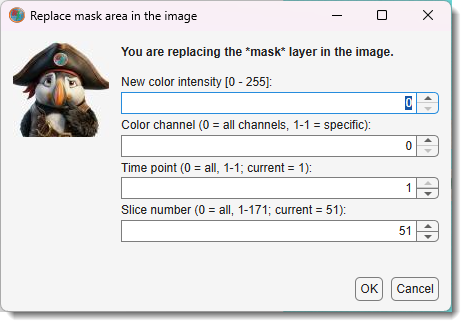
Replaces image intensities in selected areas with new values. A dialog prompts for the replacement intensity, the slice range, and the color channels to affect.
Smooth selection
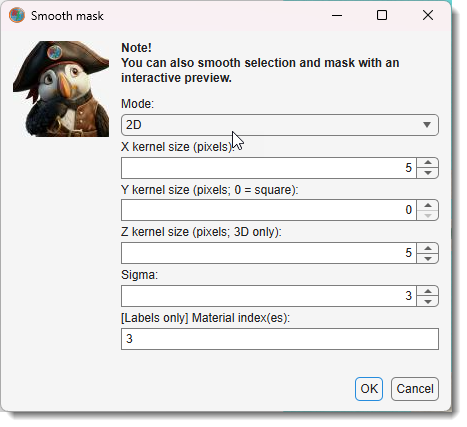
Smooths the Selection layer in 2D or 3D space.
Selection smoothing
Use Image Filters for interactive evaluation of smoothing results before committing.
Back to MIB | User interface | Ribbon