Starting MIB
Once MIB is installed, you can launch it either from inside MATLAB or as a standalone application. This page covers both, plus what to expect on the first launch.
Requirements
The MATLAB version of MIB3 requires MATLAB R2025a or newer (R2026a is recommended). If you run an older MATLAB, use MIB2 instead - see Configuration files → Previous versions.
Launch from MATLAB
Add the mib folder to the MATLAB path (or cd into it) and run the entry point:
Adjust the path to wherever you unpacked MIB. The first run may take a few extra seconds while MATLAB initialises the required libraries.
Tip
Add C:\Matlab\MIB3\mib to the MATLAB search path, and mib3 will start from any folder:
MATLAB -> Home tab -> Set Path -> Add Folder... -> Save
Launch the standalone app
The standalone version does not require a MATLAB license - only the matching MATLAB Runtime, which the installer sets up for you.
- Start MIB from the Start menu / desktop shortcut created during installation.
- Or run the installed
MIB.exedirectly.
Start compiled MIB on Linux
On Linux, start MIB from a terminal. MIB prints progress and diagnostic messages there, so you can follow what it is doing while it runs.
See the Installation page for download and setup details.
On first launch
MIB opens its main window - the ribbon along the top, the image document in the centre, and the side panels for directory contents, segmentation, and view settings.
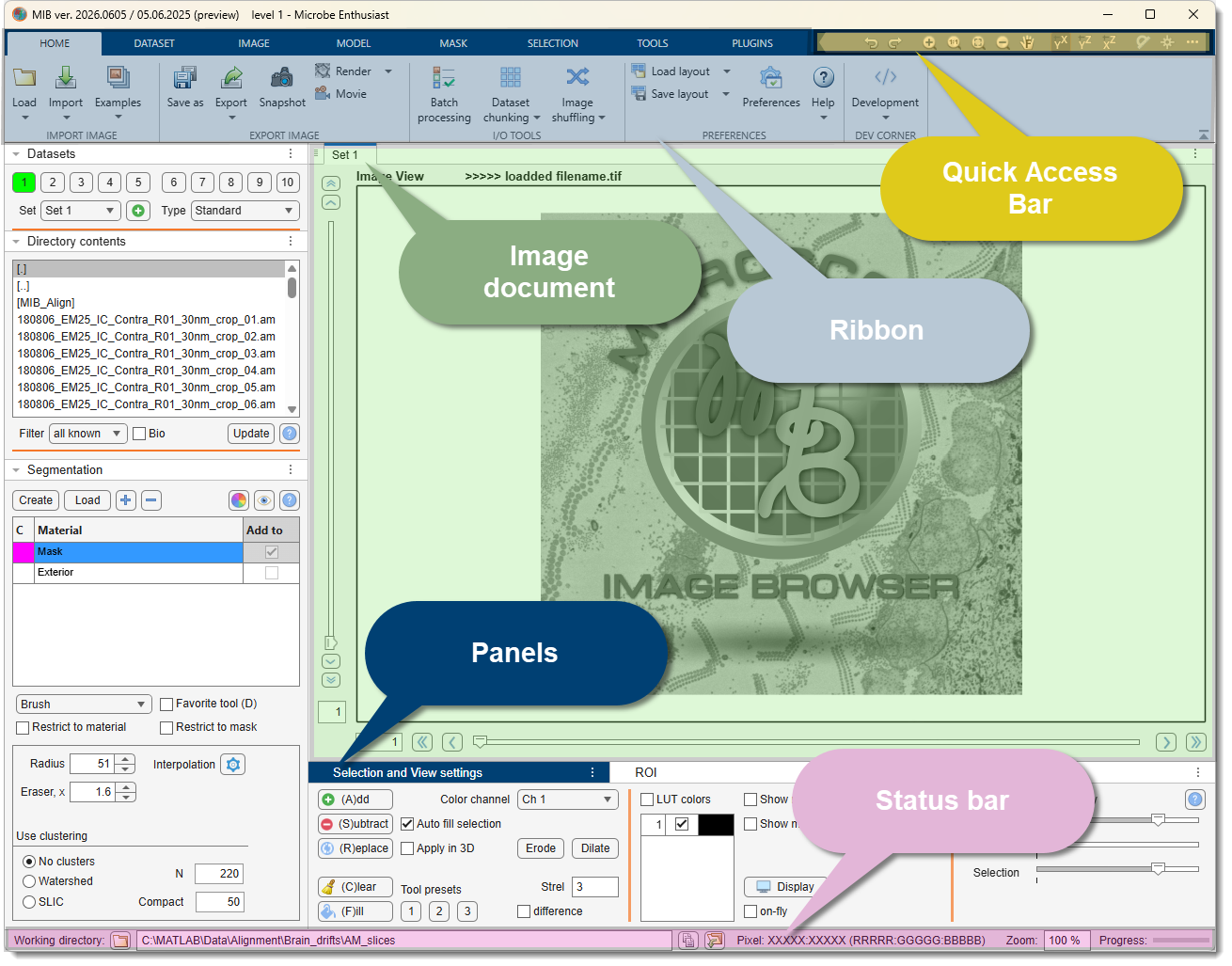
For a guided tour of every part of the window, see the User Interface section. When you are ready to open an image, continue to First dataset.
If MIB does not start
Check that the mib folder is on the MATLAB path. If it is, delete the configuration file
(mib3.mat) and restart. See Configuration files for its location.
Back to MIB | Getting started