View Settings Panel
Overview
The View Settings Panel offers essential tools for visualizing your dataset, allowing you to adjust color channels, layer visibility, transparency, and display settings.
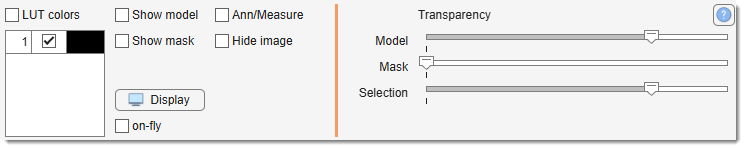
Colors table and checkbox
The Colors table lists the dataset's color channels.
Enable or disable channels by checking/unchecking their boxes.
Use Ctrl +
Demo: Working with color channels
The checkbox determines how the image is rendered:
- Checked: MIB generates the image using colors defined in the table's third column.
- Unchecked: Limits simultaneous display to 3 channels; if more are selected, only the first 3 are shown.
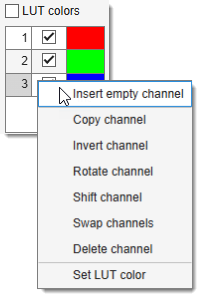
Right-click actions for color channels
- Insert empty channel: add a channel with all pixels set to 0 at a specified position.
- Copy channel: duplicate the selected channel.
- Invert channel: invert the selected channel's intensities.
- Rotate channel: rotate the selected channel.
- Shift channel: shift the channel by X and Y pixels.
- Swap channels: swap the selected channel with another.
- Delete channel: remove the selected channel.
- Set LUT color: define colors for use with (also in Ribbon → Home -> Preferences).
Checkboxes to toggle visibility of layers
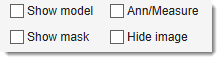
checkbox, toggles the Model layer on/off.
Shortcut:
Right-click actions for the model layer
- Render instances per object: gives every object of an imported label overlay its own colour. On by default. Switch it off to show the objects as a single material, which is easier to read when a segmentation holds hundreds of them and you only need to see where they are.
The option is available for imported overlays only, and applies to a whole overlay rather than to a selected object. Either way the stored data is untouched, so it can be switched as often as you like.
checkbox, toggles the Mask layer on/off.
Shortcut: + .
checkbox, toggles visibility of the Annotation layer and Measurements.
checkbox, toggles the Image layer on/off.
Other controls
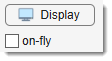
The contrast panel can be used to quickly adjust image contrast settings:
- : starts the Display Adjustments dialog allowing contrast stretching by defining black and white points for the dataset.
- : automatically adjusts contrast for each displayed image without altering the underlying data. The contrast stretching coefficients are taken from the portion of the image that is currently visible in the Image View panel.
Transparency sliders
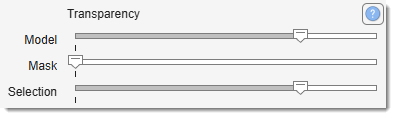
Adjust layer transparency from opaque (left) to transparent (right):
- Model slider: controls the Model layer transparency.
- Mask slider: controls the Mask layer transparency.
- Selection slider: controls the Selection layer transparency.
Back to MIB | User interface | Panels | Selection and View Settings