ROI Panel
Overview
The ROI Panel allows you to add one or more Regions of Interest (ROIs)
over your image for focused analysis or filtering.
Updated in MIB version 0.998, this implementation uses code
from Jan Neggers’ Image Measurement Utility
(Eindhoven University of Technology).
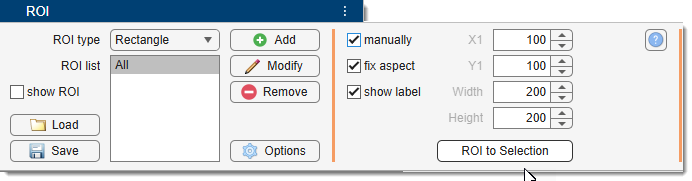
Select ROI type and add it
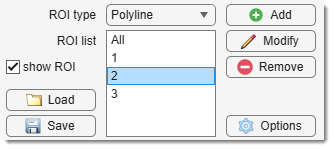
Select the ROI type to add. By default, ROIs are placed interactively, but you can define them manually using the Define parameters manually panel below the dropdown.
- Rectangle: Rectangular ROI.
- Ellipse: Ellipsoid ROI.
- Polyline: Polyline with a set number of vertices.
- Lasso: Freehand ROI.
- release to convert to a polyline ROI with a suggested vertex reduction (fewer vertices improve rendering performance).
How to place ROI
- press
- use
to place a ROI - use
to accept the ROI
ROI List
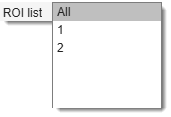
Select single or all ROIs for filtering/analysis.
Settings and buttons
button: adds ROI of the selected type to the image
button: modify ROI selected in ROI List
button: deletes the highlighted ROI from the ROI List.
button: loads ROIs from disk.
button: saves ROI data to disk in MATLAB format (structure with label, type, X, Y, orientation fields).
: shows ROIs in the Image View Panel when checked.
Alternatively, toggle visibility with the  button in the Toolbar.
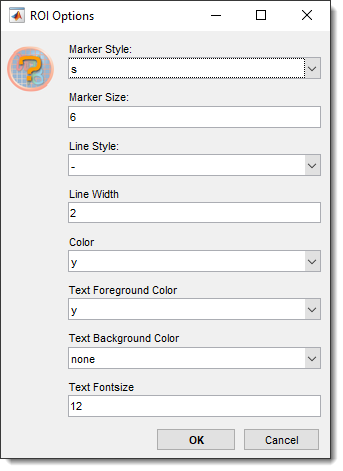
: customize ROI visualization (marker type/size/color, line width/color, label size/color).
Define parameters manually
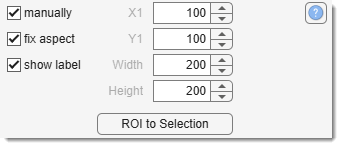
Enable manual ROI placement by checking and use:
- to define X-coordinate of the top left corner
- to define Y-coordinate of the top left corner
- to define width of the ROI
- to define height of the ROI
- press .
: locks the aspect ratio of ROIs during initial placement or later edits.
: transfers the area under the current ROI to the Selection layer.
Back to MIB | User Guide | Panels