Image Shuffling
Back to MIB | User interface | Ribbon | Home
Overview
The Image Shuffling tool in Microscopy Image Browser (MIB) shuffles files for blind modeling or classification, ensuring users don't know which file corresponds to which condition. Models from shuffled files can later be restored to their original filenames for analysis.

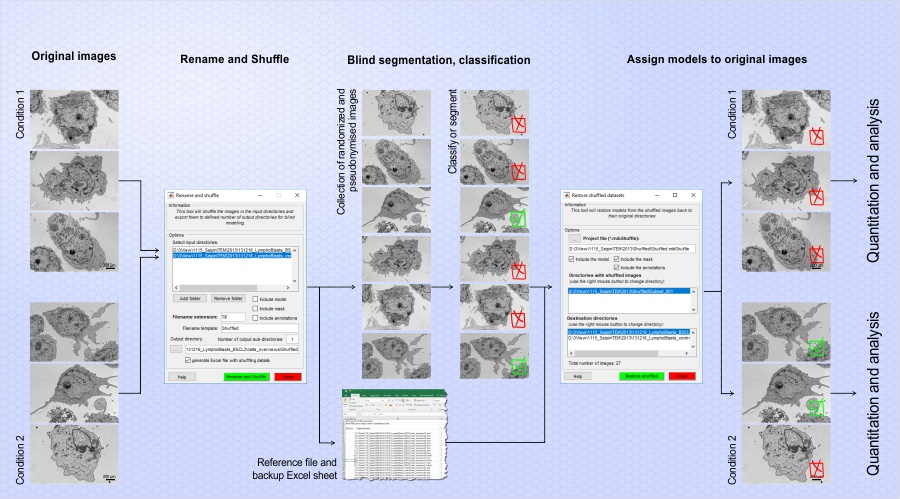
Shuffle Images
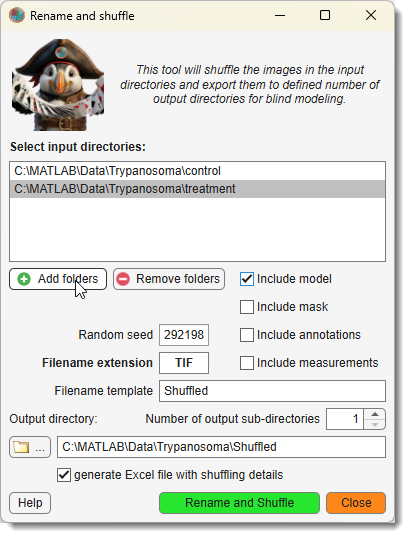
This mode renames and shuffles files from input directories into multiple output subdirectories.
Prerequisites
- Files for each condition must be in separate folders.
- Images in each folder must have the same width and height.
- Recommended: Each file contains a single image (no stacking).
- For models, masks, or annotations: Only one file per type per directory (e.g., one
*.model,*.mask, or*.annfile). - For models: All model files must contain the same materials.
Setup
Copy images from different conditions into separate directories
(e.g., Control for control images, another folder for treatment images).
There may be multiple conditions processed at the same time.
The only requirement is to have separate conditions in their own directory.
Settings
- : populate the list of input directories with images from different conditions.
- : remove a selected directory from the list.
- : shuffle existing models (one
*.modelfile per folder). - : shuffle existing masks (one
*.maskfile per folder). - : shuffle existing annotations (one
*.annfile per folder). - : shuffle existing measurements (one
*.measurefile per folder). - : a positive number setting the random number generator seed; same value ensures consistent shuffling.
- : specify the extension for image filenames (e.g.,
TIF). - : define the naming pattern for shuffled images.
- : set the destination directory for shuffled files. Use to browse.
- : number of subdirectories (e.g.,
Subset_001,Subset_002) to create under the output directory. - : in addition to
the automatically generated
.mibShuffleMATLAB-compatible file with shuffling details, generate an Excel sheet where the shuffling order is stored in human-readable format. - : start the shuffling process. An automatically generated
.mibShuffleMATLAB-compatible file with sorting details is saved to the output directory.
Restore Order
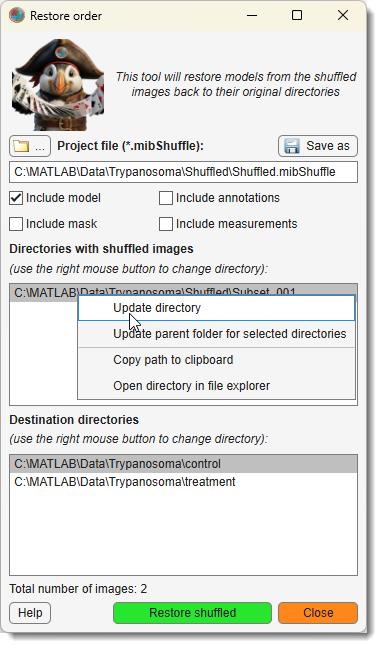
This mode restores shuffled models and masks to match their original image filenames.
Prerequisites
- Images in each folder must have the same width and height.
- For models, masks, or annotations: only one file per type per directory.
Steps
- Press to select the project file (
Project file (*.mibShuffle)), saved in the original shuffle output directory. - The Directories with shuffled images and Destination directories lists populate automatically.
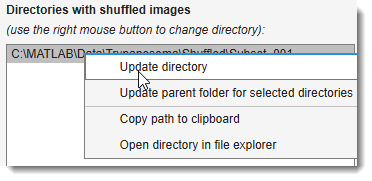
- Right-click on any directory entry for a context menu with options to:
- Update directory: manually set a new path for the selected entry
- Update parent folder for selected directories: remap all selected entries under a new parent folder
- Copy path to clipboard: copy the directory path
- Open directory in file explorer: browse the directory in Windows Explorer
- Optionally, save updated directory settings with .
- Select which layer types to restore: , , , .
- Press to start.
Output
- Restored models:
Labels_RestoreRand_YYMMDD.model(e.g.,Labels_RestoreRand_250405.modelfor April 5, 2025). - Restored masks:
Mask_RestoreRand_YYMMDD.mask. YYMMDDreflects the restoration date.
Usage Tips
Shuffling for Blind Analysis
To anonymize files:
- Organize conditions into separate folders (e.g.,
Control,Treatment). - Set (e.g., 3 for
Subset_001toSubset_003). - Shuffle with a consistent .
Back to MIB | User interface | Ribbon | Home