Import from URL / Zarr
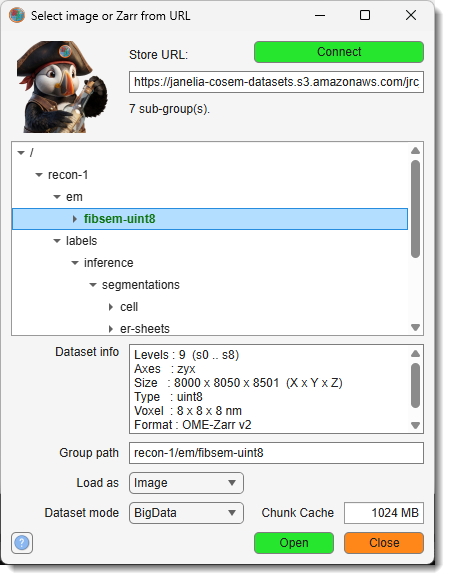
-> opens a dataset straight from the internet, without downloading it first.
Two very different sources share this dialog, and MIB decides which applies by inspecting the URL rather than asking you:
- an OME-Zarr container in a cloud bucket, opened as a BigData, Virtual or Standard dataset. Nothing is copied to your disk: MIB reads only the parts of the volume you look at.
- any ordinary image URL (
.png,.tif,.jpg), downloaded and opened as a Standard dataset. This is what this menu item always did, and it is unchanged.
Zarr open data repositories
These are some of the publicly available repositories that can be opened from MIB.
Click to browse Janelia OpenOrganelle: take me to Janelia
Example link: s3://janelia-cosem-datasets/jrc_mus-liver-6/jrc_mus-liver-6.zarr
- Select the dataset of interest:
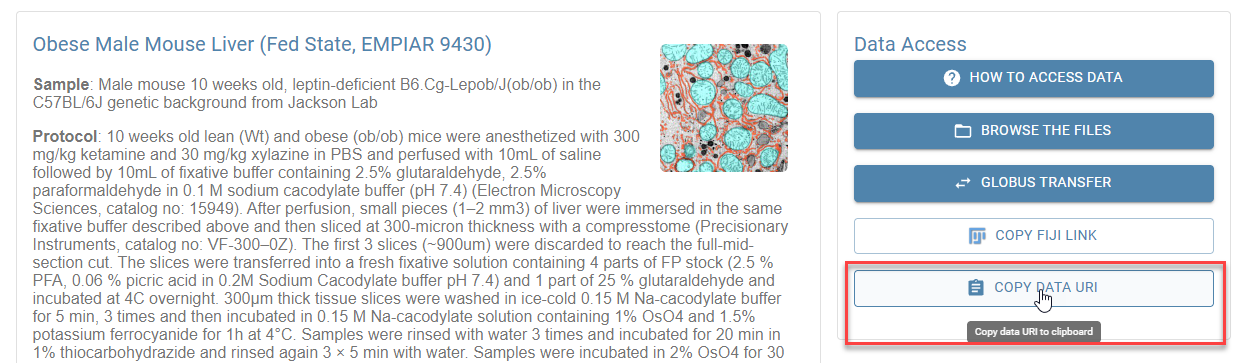
- Paste it to MIB->Import from URL:
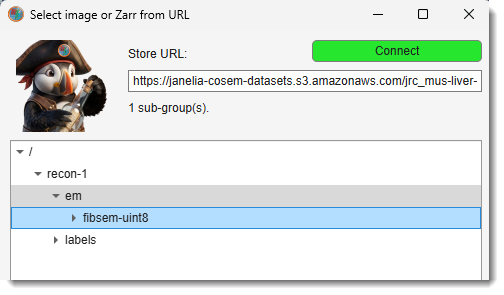
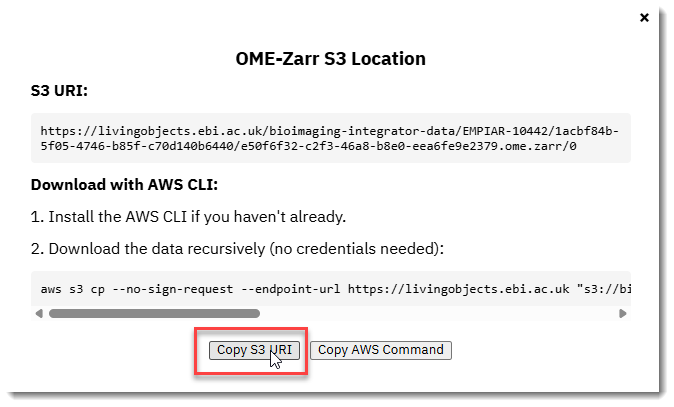
Click to browse BioImage Archive: take me to BioImage Archive
- Select the dataset of interest:
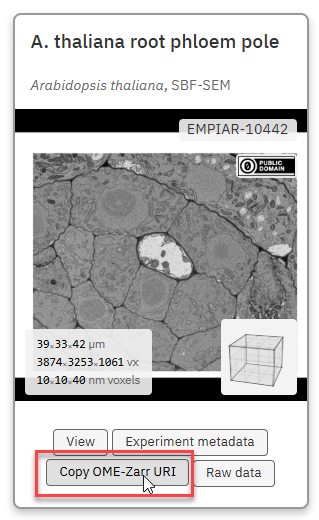
- Click the ++Copy S3 URL++ button:
Accepted URL forms and formats
| Form | Example |
|---|---|
| Virtual-host S3 | https://bucket.s3.amazonaws.com/path/store.zarr |
| Virtual-host S3, with region | https://bucket.s3.us-west-2.amazonaws.com/path/store.zarr |
| Path-style S3 | https://s3.us-west-2.amazonaws.com/bucket/path/store.zarr |
s3:// shorthand |
s3://bucket/path/store.zarr |
| Any S3-compatible host | https://s3.your-institute.org/bucket/path/store.zarr |
| Any other web host | https://example.org/data/store.zarr |
An s3:// address is rewritten to its https:// equivalent and shown back to you in the field,
so you can always see exactly what is being contacted. Only public buckets are supported:
everything is fetched anonymously, and no credentials are ever requested or stored.
MIB cannot read N5 containers. It does not have to: repositories that publish N5 normally
publish an OME-Zarr copy of the same volume beside it, under the same name. Paste an .n5 URL and
MIB looks for that copy, switches to it, and tells you so in the status line:
s3://janelia-cosem-datasets/jrc_hela-2/jrc_hela-2.n5
   -> https://janelia-cosem-datasets.s3.amazonaws.com/jrc_hela-2/jrc_hela-2.zarr
The swap is checked against the server, never assumed, and the rewritten address is shown in the
field. A group path inside the container is carried across, so
.../jrc_hela-2.n5/recon-1/em/fibsem-uint8 lands on the matching group of the zarr copy. If no
copy exists, the status line says so rather than reporting a generic failure.
Using the dialog
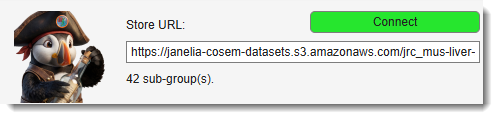
The dialog opens with the field focused and pre-filled, so typing or pasting replaces it in one step. What is offered depends on the session:
- if the dataset in the active buffer was itself opened from a URL, its container is offered, with showing which group inside it is open. Connecting therefore lands you back in the same dataset, ready to browse to its labels;
-
otherwise, whatever link is on the clipboard.
-
Paste the URL of the container - the folder usually named
*.zarr- and press Enter (or ). - Expand the tree to find the group you want. Each expand fetches one directory listing, so browsing a huge published dataset stays quick.
-
Select a group. When it holds an image pyramid, its details appear in the panel below and becomes available:
Levels : 15  (s0 .. s14)
Axes   : zyx
Size   : 23601 x 21451 x 49645  (X x Y x Z)
Type   : uint8
Voxel  : 8 x 8 x 8 nm
Format : OME-Zarr v2
Match  : differs, the open dataset is 500 x 500 x 100  (X x Y x Z)
The Match line compares the group with the dataset in the active buffer. When the two are the same size the line says so and the node turns green and bold in the tree - that is the case where
Labelsputs the group straight on top of what is already open. Only the selected group is marked: it is the only one whose metadata has been read, and checking every sibling would cost a request each. -
Choose and , then press .
shows the selection as a path relative to the
container, for example recon-1/em/fibsem-uint8. You can also type it directly, which is the
only option on servers that do not allow directory listing (see below).
Ordinary image URLs
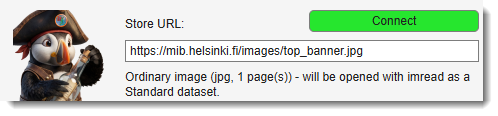
Steps 2-4 apply to OME-Zarr containers only. If the URL turns out to be a plain image file instead, there is nothing to browse and nothing to choose, so pressing Enter downloads and opens it right away as a Standard dataset and closes the dialog - paste, Enter, done.
stops short of that: it reports what the file is and waits for . Use it when you would rather check the URL before anything is downloaded.
does not apply here and is set to Standard for you: a plain image is one array in memory, with no pyramid to stream. This holds even when the buffer you import into was BigData.
Load as
- Image - open the group as the dataset.
- Labels - load it as a segmentation model. Three things can happen, and the dialog tells you
which before you press Open:
- the group matches the open image voxel for voxel, and it is loaded straight on top of it;
- the group covers the same volume at a coarser resolution, and with on BigData it is drawn over the open dataset as each slice is read. See Labels published only at coarse resolution;
- the group is a ground-truth crop - a small annotated cube carved out of a much larger volume - in which case MIB opens the matching image region as well and puts the labels on that. See Label crops.
How a foreign store's values become materials
Another tool's label store uses its own numbering, and MIB's model has 63 material slots, so the values are translated on the way in:
- a group that declares its encoding (the COSEM
cellmapblock) contributes one material, named after its ownclass_name.presentbecomes that material;unknown- the value 255, meaning not annotated - becomes background, because it is not evidence of the class; - a binary mask that declares nothing, which is what an inference segmentation writes, is one material named after the group. Any non-zero value becomes it, so a mask written as 0 / 255 works as it stands;
- an index map whose values already fit MIB's range (a merged ground-truth group with ids 3, 4, 5 …) keeps its numbering, one material per id.
Without this a value of 255 would arrive as material 63 with the mask and selection bits set, and the Segmentation panel would list 63 materials for a store holding a single class.
Opening a second remote dataset
If a remote dataset is already open and you press
on a different group with
still set to Image, MIB asks which you
meant before doing anything:
- Image - open it as a new dataset, replacing what is in the buffer;
- Labels - load it onto the dataset that is already open instead;
- Cancel - go back to the dialog with your selection intact.
The question is asked because that is the point where the two are easy to confuse: the usual
reason to come back to the same container is the annotations, and Image is the default that
was never changed. Re-opening the group that is already open is not ambiguous, so it goes
through without asking, and batch mode never asks at all.
Dataset mode
- BigData (default) - browse and segment. The image stays remote; any model you create is written to a local folder of your choosing.
- Virtual - browse only. Reads the image exactly as BigData does.
- Standard - read one pyramid level fully into memory. Right for small groups, such as an annotated crop; not for a multi-terabyte volume.
Worked example: Janelia OpenOrganelle
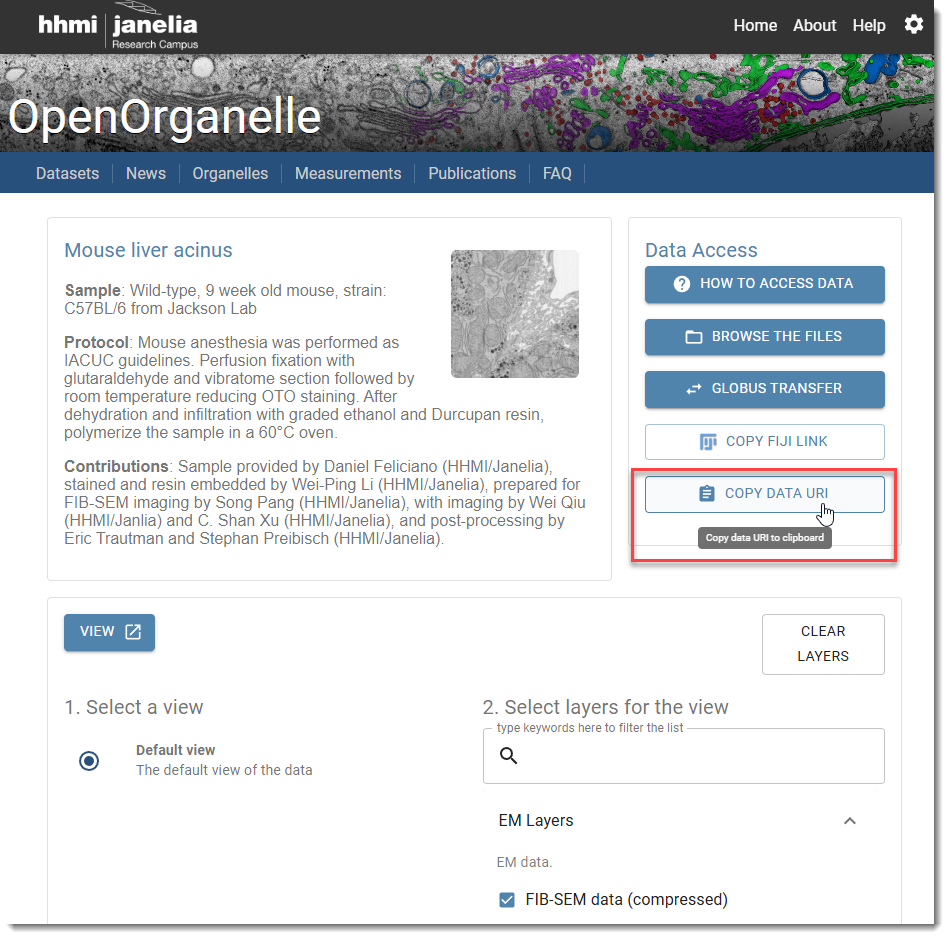
OpenOrganelle publishes its FIB-SEM volumes in a public
bucket. For the dataset jrc_mus-liver-zon-1:
Press Enter, then expand recon-1 -> em -> fibsem-uint8. That group is a 15-level
pyramid of a 23601 x 21451 x 49645 volume at 8 nm - about 25 teravoxels. Open it as
BigData and browse it like any other dataset.
Other datasets in the same bucket follow the same layout; a few store the image under
recon-1/em/tem-uint8 instead. You do not need to know which, because the tree shows you.
Both links on an OpenOrganelle dataset page give you N5
The link and the
button on a dataset page both hand out
the .n5 address, for example
s3://janelia-cosem-datasets/jrc_hela-2/jrc_hela-2.n5. Paste it as it is - MIB switches to the
.zarr copy published alongside it. See N5 addresses.
Tip
Leaving empty and pressing Open makes MIB search the container for the image group itself, which takes a few seconds. Picking the group in the tree is faster and unambiguous.
Label crops
Published EM containers may include ground-truth crops: small cubes of the parent volume
annotated densely, class by class, and stored under a labels branch. In the OpenOrganelle
jrc_hela-2 container they sit at recon-1/labels/groundtruth/crop1, crop9, and so on, with
each crop holding one group per class plus a merged all.
A crop cannot be loaded onto the open parent volume - it is a 500 x 500 x 100 island inside a volume of 12000 x 1600 x 6368. So MIB does not try. Selecting a crop's class groups and pressing Open fetches the matching image region too, cutting the EM volume down to exactly the crop's extent, and puts the labels on that. Image and labels then have identical dimensions and sit on the same voxel grid.
This route reads everything into memory, so it needs Standard mode
Both the image region and the model are held in RAM, which is a Standard dataset. Selecting a crop with set to BigData or Virtual is therefore refused rather than silently overridden: the info panel names the size and level you would get, and you set Dataset mode to Standard and press Open again.
A crop is a part of the volume, which is why it has to be opened with its own image region. A segmentation covering the whole volume does not, and in BigData mode it is shown over the open dataset instead - see Labels published only at coarse resolution.
Choosing the level
The labels and the image do not line up at every resolution - only at the levels where their voxel sizes match. Open asks which of those to read, with the dimensions and the memory cost of each:
s4: 767 x 498 x 1387 px at 128 nm - 1010 MB
s5: 383 x 249 x 693 px at 256 nm - 126 MB
s6: 191 x 124 x 346 px at 512 nm - 16 MB
Levels with no matching label level are not offered at all; MIB will not resample one pyramid to fit the other. The finest level that fits in memory is preselected. When only one level pair matches there is nothing to choose and the question is skipped.
Selecting classes
The tree takes a multiple selection - Ctrl or Shift click - because a useful model usually blends several classes. The order you click in matters: where two classes cover the same voxel, the one picked later wins. MIB counts the overlap exactly and reports it after loading, so you never have to guess what a pick order did.
Each class becomes one material, named after the class the store declares (mito_mem,
er_lum, ...), in pick order.
The merged all group
Every crop also holds an all group, which is different in kind from the per-class ones: instead of
a yes/no mask for one class, it holds every class of the crop in a single array, each keyed by
the publisher's own class id. Selecting it gives you the whole ground truth in one go - MIB splits
it into one material per id present.
Those materials are named by id - all_3, all_4, all_28 - and not by class name. The ids
are the publisher's fixed table and do not follow the order of the crop's own class_names list, so
naming them from that list would label every material wrongly. If you want named materials, select
the per-class groups instead; they declare their own names.
Example
crop266 of jrc_mus-liver-zon-1 has 17 classes in its all group, with ids running 3, 4, 5,
8, ... 48. Selecting all gives a 17-material model over the matching 200 x 200 x 200 EM
region.
What MIB reports after loading
A summary appears whenever there is something the model itself cannot show you:
- Overlap - which class took how many voxels from which other. COSEM classes are deliberately
not disjoint:
eriser_mempluser_lum, ander_mem_allcontainser_mem. - Unannotated voxels - the value
unknown(255) means "nobody looked here", not "background". It lands in material 0 alongside real background, so the count is reported. Do not treat those voxels as negatives when training on the result. - Empty classes - a class group can exist in a crop and contain nothing at all. It is kept as a material with no voxels, and named.
- A single-material crop - some crops genuinely are one class throughout (entirely extracellular space, entirely nucleus). Said explicitly, so a solid-colour model does not look like a failure.
Labels published only at coarse resolution
A segmentation may carry fewer pyramid levels than the image it belongs to, starting at a coarser
resolution. In jrc_ctl-id8-1, recon-1/labels/inference/segmentations/nuc begins at 64 nm while
the EM goes down to 4 nm.
These load either way, and chooses between two different results. The info panel says which one you will get before you press Open.
BigData - an overlay over the dataset you are browsing. The labels are drawn over the open image as each slice is read, upsampled where the image is finer, and the image keeps every level it had. Nothing is downloaded in bulk, so the size of the segmentation does not matter. The labels cannot be edited: they are displayed from a store that belongs to another tool. To save them to a file, see Saving an overlay.
An instance segmentation arrives with each object in its own colour. To show them as a single
structure instead - easier to read when there are hundreds -
Standard - the labels and their matching image region, in memory. MIB opens the image at the level that matches the labels and puts them on that, so the two sit on the same voxel grid, and the model is an ordinary editable one. The dataset you get cannot be zoomed to the resolution of the volume you were just browsing, because its finer levels are not in that buffer; open the image group on its own to go back to full resolution.
Pick BigData to look at a segmentation, Standard to correct one.
Saving an overlay
A segmentation shown as an overlay is written out one pyramid level at a time: asks which level, then writes it in any of MIB's model formats.
The question has to be asked because these labels have no full-resolution level - that is what makes them an overlay - so there is no level MIB could pick for you. The list gives each level's dimensions and how much coarser than the image voxel it is. The result is a normal model file that can be opened on its own, and writing it does not need enough memory to hold it.
What cannot be blended
Nothing, as of this version - but one kind of group needs a decision.
Instance segmentations. A handful of groups - mito, nuc, ves, endo, lyso, ld,
perox, np, mt, cell - store an object id per voxel rather than a class. The info panel
says so when you select one, and in Standard mode Open asks how to take it:
- Keep objects (default) - one material per object, named by the store's id (
nuc_1,nuc_2, ...). The objects stay separable and MIB's instance tools apply. Up to 65535 of them. - Merge into one material - a single material covering all of them: a mask of where they are, which is easier to work with when there are hundreds. Which voxel belonged to which object is then gone.
Either way the object count is reported after loading, since the model itself cannot show it.
In BigData mode the question is not asked: the overlay keeps the objects, and merging them is a right-click on that can be undone as often as you like. See Labels published only at coarse resolution.
Segmentations of a whole volume. Published containers also carry inference results - for
example recon-1/labels/inference/segmentations/er - which look exactly like a ground-truth crop
in the metadata but cover the entire volume. With
set to BigData these open as an overlay
over the dataset you are browsing, at any size: for jrc_mus-liver-6 that is 8050 x 8000 x 8500
voxels, about a terabyte, and nothing is downloaded in bulk. See
Labels published only at coarse resolution.
In Standard mode the same group would be read into memory together with its image region, which the info panel refuses with the size it would need. Either lower back to BigData, or open the group with Load as: Image to pick a pyramid level.
Worked example
Paste the container URL, expand recon-1 -> labels -> groundtruth -> crop1, then
Ctrl click mito_mem, mito_lum and er_mem. The info panel confirms which image group the
region will come from and at what size. Press Open: a 500 x 500 x 100 dataset at 4 nm appears in
Standard mode with a three-material model on it, in about ten seconds.
Which image, and at which resolution, is worked out from coordinates
The crops are annotated at 2 nm and the EM is 4 nm, so MIB pairs the crop's s1 level with the
image's s0. It finds the image group by asking which volume's physical extent contains the
crop, not by its name, and it refuses to load rather than resample if the two pyramids share no
common resolution. You can override the choice with ImageGroupPath in
batch mode.
Requirements
None. Both OME-Zarr formats - v2, which is what OpenOrganelle and most published OME-NGFF v0.4 data are, and v3 - are read by the bundled native engine using HTTP range requests. Nothing has to be installed.
Python is involved only if you deliberately switch
Preferences -> Input/output -> Zarr library to python. That
engine reaches the network through fsspec and then needs two extra packages in the interpreter set
at Preferences -> External directories -> Python installation path:
MIB checks for them when you press Open and tells you the exact command if they are missing.
If the native engine ever refuses a store
The native engine parses compression settings strictly, and an older build rejected a whole
array over an unknown but harmless field. OpenOrganelle's jrc_mus-liver-6 triggered this -
its compressor is written as {"id": "zstd", "level": 6, "checksum": false}, while its
neighbours in the same bucket omit checksum. This is fixed: jrc_mus-liver-6 and every
other store tested opens natively, and no Python is needed.
Should a future store declare something the engine still does not recognise, MIB reads that
array with zarr-python automatically and prints a line in the MATLAB command window naming
the store and the reason. Only that dataset is affected - the rest of the session stays native
- but it does need zarr, aiohttp and requests installed, as above. If Python is
unavailable, opening the dataset reports both the codec MIB could not read and why Python
could not take over.
Limitations
Speed. The first look at any region is fetched over the network and takes roughly a second or two per screenful at full resolution. After that it is held in memory, so scrubbing through slices and panning within what you have already seen are effectively instant.
This works because of how OME-Zarr stores data. A chunk is the smallest piece a server will send, and published volumes are usually chunked for 3D access - the Janelia C. elegans store uses 64 x 128 x 128, so every chunk carries 64 slices. Fetching one screenful therefore also fetches the next 63 slices of it, and MIB now keeps them instead of discarding them:
| First view of a region | Next slice | |
|---|---|---|
| Without the cache | ~2 s | ~2 s |
| With the cache | ~2 s | ~0.01 s |
The memory budget is in this dialog, 512 MB by default. It is the same setting as Preferences -> Input/output -> Zarr library -> Chunk Cache, and a change here takes effect immediately, including for datasets already open. That holds roughly eight full-resolution screenfuls of the store above; when it is full the least recently used chunks are dropped. Setting it to 0 turns the cache off.
The image pyramid does the rest: zoomed out, MIB reads a small downsampled level rather than the full-resolution one, so a whole-volume overview costs far less than a full-resolution screenful.
A crop is opened as its own dataset, not as an overlay. Selecting a ground-truth crop replaces what is open with the crop's image region plus its labels (Label crops); it does not paint the annotation onto the parent volume you were browsing. Drawing a small, finely sampled annotation over a multi-terabyte volume it is a tiny part of is a separate feature and does not exist yet.
Crops therefore need set to Standard, and MIB refuses the others rather than overriding your choice. That a crop is read fully into memory is not the limitation it sounds like: a remote label store is read-only, so correcting a crop - the main reason to open one - needs the in-memory copy anyway. Every crop in the reference container fits comfortably; the largest is 64 MB.
A segmentation covering the whole volume is shown as an overlay, because it needs no image region of its own. It is read-only, as any remote store is.
Browsing needs the S3 listing API - but not Amazon. Any endpoint that answers
ListObjectsV2 can be browsed, including institutional MinIO and Ceph servers hosted on their own
domain. MIB does not check the host name: it simply tries, and a server that does not
speak the API costs one request. When that happens the dialog says so and you type the
yourself; everything else works normally.
Batch mode
The dialog is available in Batch processing as
Ribbon -> Home -> Import from URL / Zarr, with Url, GroupPath, LabelGroups, ImageGroupPath,
LoadAs, DatasetMode, MergeInstanceObjects, ZarrLevel and showWaitbar. A recorded protocol
replays without browsing, so GroupPath should be filled in.
Five parameters have no control in the dialog and exist only for protocols:
| Parameter | Purpose |
|---|---|
showWaitbar |
The dialog always shows progress; a protocol can suppress it. |
LabelGroups |
Semicolon-separated label groups to blend, relative to Url, in pick order. Empty means "just GroupPath". |
ImageGroupPath |
Overrides the image group a crop is loaded onto. Empty means "find it by coordinates". |
MergeInstanceObjects |
Takes an instance segmentation as one merged material instead of one per object. Off by default, so a protocol keeps the objects - the dialog asks instead. |
ZarrLevel |
[Load as = Labels] 1-based image pyramid level to read the region at. Must be a level that has a matching label level; empty means the dialog asks. |
Url            = https://janelia-cosem-datasets.s3.amazonaws.com/jrc_hela-2/jrc_hela-2.zarr
LabelGroups    = recon-1/labels/groundtruth/crop1/mito_mem;recon-1/labels/groundtruth/crop1/mito_lum
LoadAs         = Labels
MibModel.loadImages gained two matching parameters that are useful on their own, for local stores
as much as remote ones:
Region- open only a sub-volume, given as six numbers in micrometres,xmin xmax ymin ymax zmin zmax. These describe the outer extent (voxel faces, not voxel centres). A region that does not fall on the store's voxel grid is rounded outward and the overshoot is reported, never shifted.ZarrLevel- the 1-based pyramid level to read in Standard mode, instead of being asked.