Quick Access Bar
The Quick Access Bar (QAB) runs along the top of the MIB window and gives one-click access to the most frequently used actions, without switching ribbon tabs.
Overview

Buttons are grouped from left to right by function. Hover over any button to read its tooltip.
Undo / Redo
| Button | Action |
|---|---|
 Undo Undo |
Restores the previous dataset state. Use Ctrl+Z to toggle undo-redo for the last operation. |
 Redo Redo |
Reapplies the last undone action. |
Set undo history length in Ribbon → Home → Preferences → Backup and Undo.
Zoom controls
These buttons adjust the magnification of the image in the Image View panel.
| Button | Action |
|---|---|
 Zoom in Zoom in |
Increases magnification by 1.5×. |
 1:1 1:1 |
Sets magnification to 100%. |
 Fit Fit |
Fits the image to the Image View panel. |
 Zoom out Zoom out |
Decreases magnification by 1.5×. |
Keyboard shortcuts are faster
For continuous zooming while working, use the keyboard shortcuts Q (zoom out) and W (zoom in) instead of clicking these buttons. See the full list of shortcuts on the Key and Mouse Shortcuts page.
Fast pan mode

Toggles Fast pan mode for panning the image in the Image View panel with
MIB3 is optimised for smooth panning — holding
When to use Fast pan
Enable Fast pan when working with very large or high-bit-depth datasets where the standard panning still feels sluggish. For most datasets MIB3's default panning is sufficient and Fast pan is not needed.
Orientation buttons

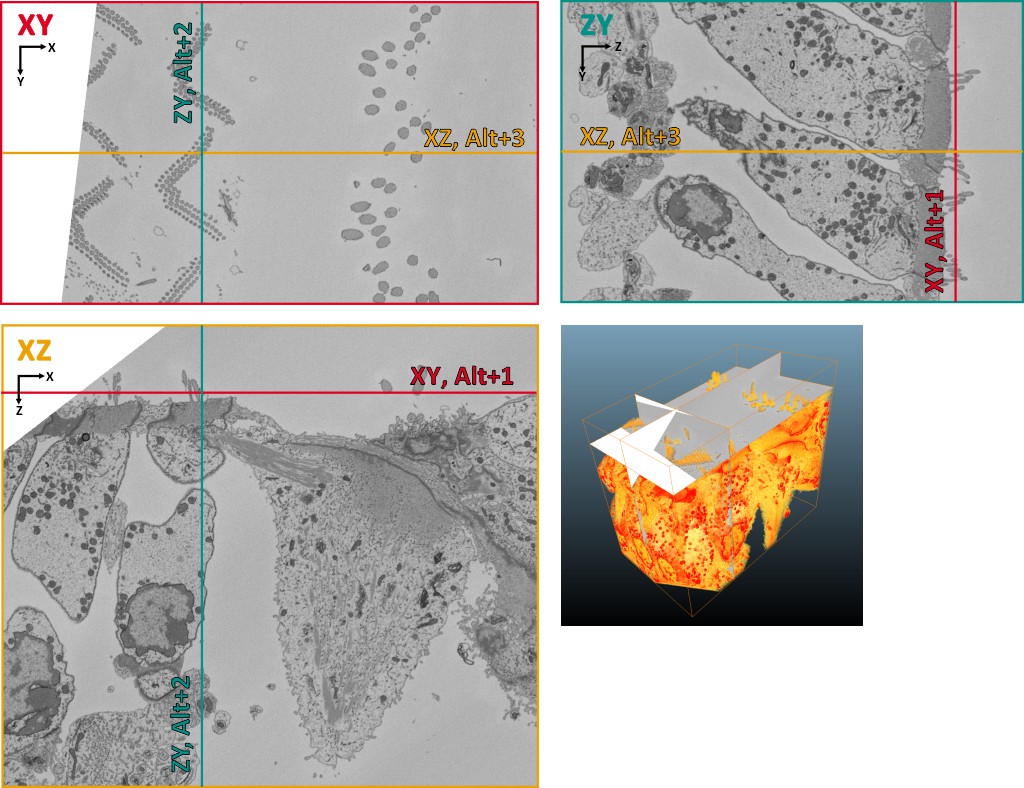
Switch the viewing plane between XY, ZX, and ZY orientations. X always runs horizontally and Y vertically, so Z is vertical in ZX and horizontal in ZY.
| Button / Shortcut | Plane |
|---|---|
| YX / Alt+1 | XY plane (default) |
| YZ / Alt+2 | YZ plane |
| ZX / Alt+3 | ZX plane |
Keyboard shortcuts rotate around the cursor
When using Alt+1, Alt+2, or Alt+3 with the mouse cursor positioned over the image, the view rotates around the point under the cursor, keeping that location centred in the panel.
Warning
Some segmentation tools may only be applied to the dataset in the XY orientation.
Example of a dataset in different orientations
Line measure tool

Measures linear distances.
See more Ribbon → Tools → Measure tool.
Center marker toggle

Toggles the center marker on the image axes, useful for graphcut segmentation in grid mode.
ROI mode switch

Toggles ROI visibility. When ROIs are shown, certain tools automatically restrict their operation to the ROI area.
ROI-aware tools
Some tools respect the shown ROI and process only the pixels within it:
- Image Filters — filtering is applied exclusively inside the ROI, both during preview and when committing the result.
- Adding Selection to Model or Mask (A, Shift+A, and related shortcuts) — the addition is restricted to the ROI area; pixels outside the ROI boundary are not affected.
Tools that are not ROI-aware always process the full dataset or current slice regardless of ROI visibility.
See ROI Panel for creating and managing ROIs.
Block-mode switch

When enabled, filters and operations act only on the visible portion of the dataset, speeding up testing or segmentation.
Warning
Incompatible with ROIs (full dataset is used when ROIs are active).
Save model

Saves the model without prompting for a name, using:
- Default template:
Labels_NAME_OF_THE_DATASET.model, or - Name from the last Save model as…, or
- Name from a prior Load model action
Also accessible via Ribbon → Model → Save model.
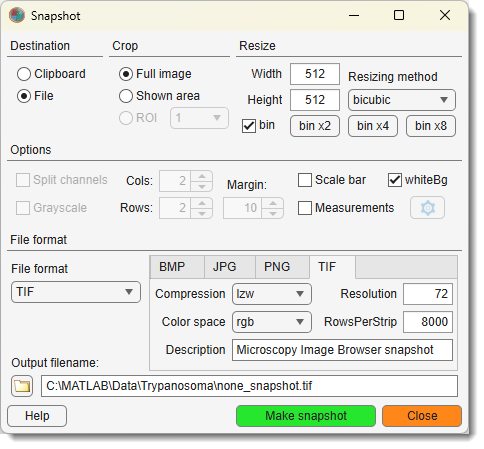
Make snapshot

Opens a dialog to capture the current slice.
See more details.
Make snapshot dialog
Help

Opens the MIB documentation.
The documentation is also available directly from MIB website: https://mib.helsinki.fi/help/main3/index.html
Back to MIB | User interface