Make Movie
Back to MIB | User interface | Ribbon | Home
Overview
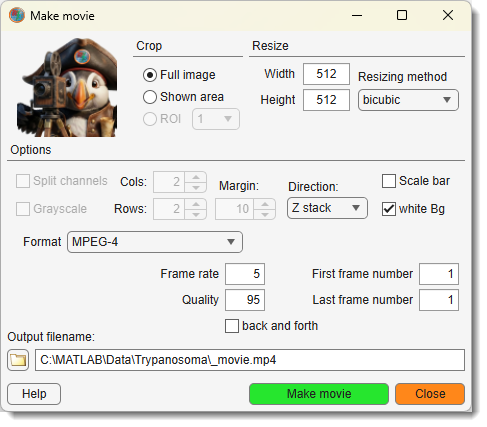
This dialog provides access to different settings for making video files.
Crop
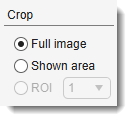
- Full image: renders video of the whole dataset.
- Shown area: renders video of the shown area only.
- ROI: use selected ROI (the ROI may be defined using the ROI panel) as area for the video.
Resize
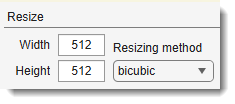
- Width: modify width of the video file (the width depends on aspect ratio of the voxels).
- Height: modify height of the video file.
- Resizing method: select one of possible resizing methods.
List of image resizing methods
- nearest: nearest-neighbor interpolation; the output pixel is assigned the value of the pixel that the point falls within. No other pixels are considered.
- bilinear: bilinear interpolation; the output pixel value is a weighted average of pixels in the nearest 2-by-2 neighborhood.
- bicubic: bicubic interpolation; the output pixel value is a weighted average of pixels in the nearest 4-by-4 neighborhood.
- lanczos2: lanczos-2 kernel.
- lanczos3: lanczos-3 kernel.
Options
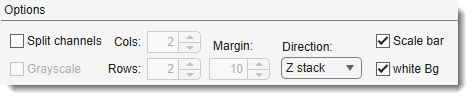
- : add a scale bar to the video file.
Scale bar
If the width of the video is too small the scale bar is not rendered.
- (only for 5D datasets) select the direction for video generation: "Z-stack" or "Time" for a time series.
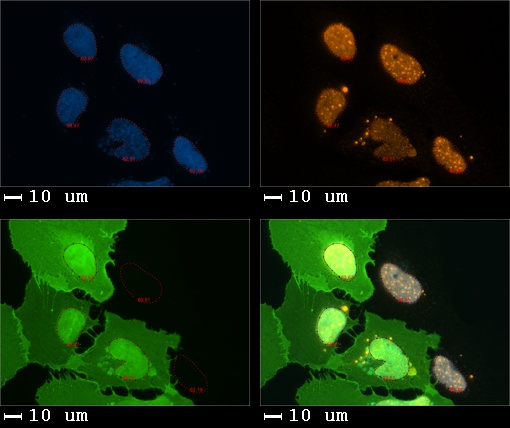
- : generate a montage image where each panel shows only one color channel.
- : number of horizontal panels in the montage.
- : number of vertical panels in the montage.
- : render individual color channels in grayscale mode.
- : render background in white color for the split channel mode and the scale bars.
- : gap in pixels between panels in the montage.
Split channel example
Format
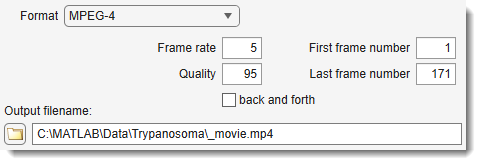
Select one of the possible formats:
- Archival: motion JPEG 2000 file with lossless compression.
- Motion JPEG AVI: compressed AVI file using Motion JPEG codec.
- Motion JPEG 2000: compressed Motion JPEG 2000 file.
- MPEG-4: compressed MPEG-4 file with H.264 encoding (Windows 7 systems only).
- Uncompressed AVI: uncompressed AVI file with RGB24 video.
Settings
Select additional parameters for video rendering:
- : rate of playback for the video in frames per second.
- : number from 0 through 100. Higher quality numbers result in higher video quality and larger file sizes. Only available for MPEG-4 or Motion JPEG AVI formats.
- : the number of the first frame for the video.
- : the number of the last frame for the video.
- : complement the video with the same video rendered in the reverse direction.
Output filename
- : name and location of the destination file. Use to browse.
Back to MIB | User interface | Ribbon | Home