Mask Ribbon Tab
Overview
Actions that can be applied to the Mask layer. The Mask layer is one of three main segmentation layers (Model, Selection, Mask) which can be used in combination with other layers. See more about segmentation layers in the Data layers section.

Convert Section
Mask→Selection
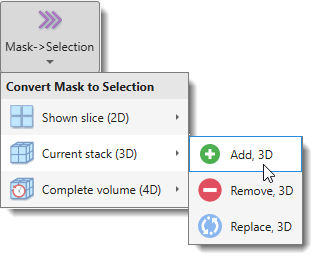
Transfers the Mask layer into the Selection layer. The main button opens a dropdown to choose the dataset extent and the transfer mode.
| Scope | Add | Remove | Replace |
|---|---|---|---|
| Shown slice (2D) | Add, 2D | Remove, 2D | Replace, 2D |
| Current stack (3D) | Add, 3D | Remove, 3D | Replace, 3D |
| Complete volume (4D) | Add, 4D | Remove, 4D | Replace, 4D |
- Add — adds masked pixels/voxels to the existing Selection.
- Remove — removes masked pixels/voxels from the existing Selection.
- Replace — replaces the Selection with the Mask.
Import Section
Clear mask

Clears the Mask layer, removing it from memory across the entire dataset.
Load mask

Loads a mask from disk. By default, masks are stored in MATLAB format with the *.mask extension.
Supported file formats:
- mask — MATLAB format (default)
- am — Amira Mesh labels
- h5 — Hierarchical Data Format (HDF5)
- tif — TIF format
- xml — Hierarchical Data Format with XML header (HDF5)
- All files — standard image formats can also be imported as masks
Mask limitations
Masks can only contain a single material.
Import
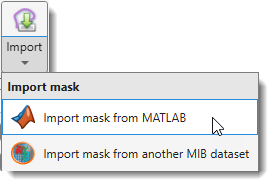
Imports a mask from an external source. The dropdown provides:
Import mask from MATLAB
Imports a mask from the main MATLAB workspace.
The mask must be a uint8 matrix matching the dataset dimensions [height, width, depth].
Import mask from another MIB dataset
Copies the mask from another dataset currently open in MIB.
Export Section
Export
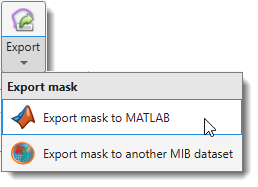
Exports the mask to an external destination. The dropdown provides:
Export mask to MATLAB
Exports the mask as a uint8 matrix to the main MATLAB workspace.
The exported variable can be re-imported via Import mask from MATLAB.
Export mask to another MIB dataset
Copies the mask to another dataset currently open in MIB.
Save mask

Saves the mask to disk. A save-file dialog always appears to let you choose the filename and format.
By default, the filename uses a Mask_ prefix and *.mask extension.
Available save formats:
- MATLAB format (.mask): default format for saving masks.
- Amira mesh binary (.am): Amira Mesh binary format.
- Amira mesh binary RLE compression SLOW (.am): compressed Amira Mesh format.
Warning
Not recommended due to slow performance. Export as Amira mesh binary and resave with RLE compression in Amira instead.
- Hierarchical Data Format (.h5): chunked format suitable for Ilastik.
- PNG format (.png): saves mask as 2D slices in Portable Network Graphic format.
- TIF format (.tif): saves mask as 2D slices or a 3D volume in Tag Image File format.
- Hierarchical Data Format with XML header (.xml): generates an HDF5 file and an XML file with image parameters.
Tools Section
Invert
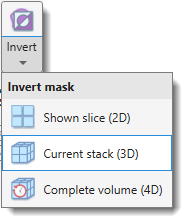
Inverts the mask — masked areas become background and background becomes mask.
The dropdown selects the scope:
- Shown slice (2D), inverts the mask on the currently displayed slice only.
- Current stack (3D), шnverts the mask across all slices in the current Z-stack.
- Complete volume (4D), inverts the mask across the entire dataset including all time points.
Replace masked areas
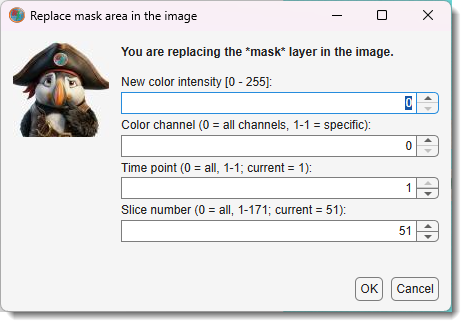
Replaces image intensity in masked areas with new values.
A dialog prompts for the replacement intensity, the slice range, and the color channels to affect.
Smooth mask
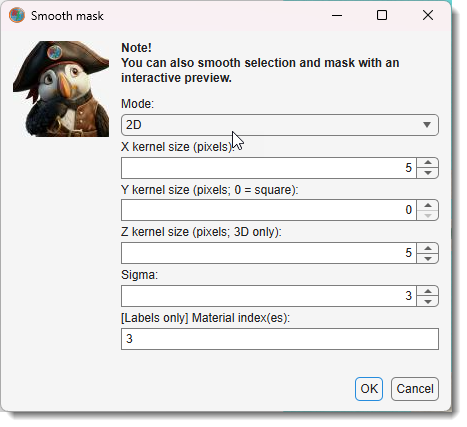
Smooths the Mask layer in 2D or 3D space.
Mask smoothing
Use Image Filters for interactive evaluation of smoothing results before committing.
Quantify Section
Quantify
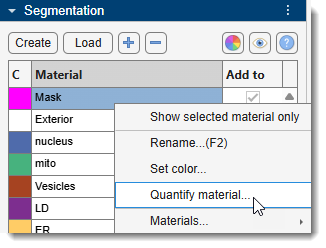
Opens the Mask and Model Quantification dialog for quantifying shape and intensity properties of mask objects.
Also accessible via
Segmentation Panel → Materials List → Right-click → Quantify material...
Back to MIB | User interface | Ribbon