Image Layers
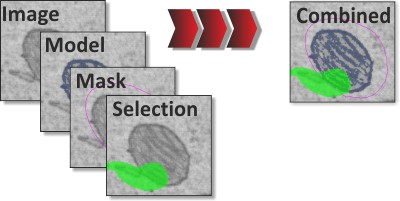
Microscopy Image Browser (MIB) organizes datasets in a layered structure, storing each opened image in the Image layer. This is supplemented by Model, Mask, and Selection layers, all matching the Image layer’s X, Y, Z dimensions. These additional layers support the image segmentation process.
General Organization
For visualization, MIB combines all layers to produce the image shown in the Image Document. You can toggle each layer on or off, adjust transparency, and change colors (see the View Settings Panel docs).
By default, the Model, Mask, and Selection layers share a single memory container, limiting materials to 63 but minimising memory use. MIB supports four model types with increasing material limits and memory costs:
| Model type | Max materials | Memory (relative) |
|---|---|---|
| 63 materials (default) | 63 | lowest |
| 255 materials | 255 | ~2× default |
| 65535 materials | 65 535 | ~2.5× default |
| 4294967295 materials | ~4.3 billion | ~5× default |
Choose the organization type in the Ribbon → Model → Convert type.
Image Example
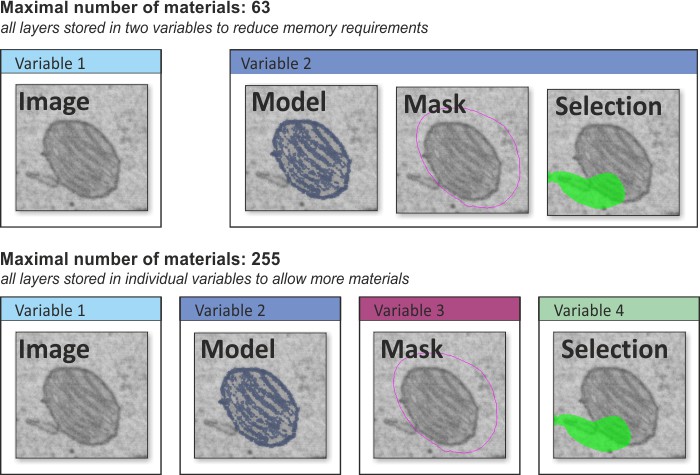
When working with 65535 or 4294967295 material models, the Segmentation Panel layout changes: the + / − material buttons are replaced by controls to find the next empty index and squeeze the index space.
Materials should be named with numbers representing the target material index (e.g., 11555 means the selection is assigned to index 11555 when added to the model).
The Variable 2 in the image example has uint16 or uint32 class
Image Layer
The Image layer holds the core 2D-4D microscopy dataset. It’s always present and forms the foundation of MIB’s data structure.
MIB supports three dataset types - Standard (full dataset in RAM), Virtual (browse large files without loading them fully), and BigData (segment datasets far larger than available RAM using a pyramidal on-disk store). See Dataset types for details.
Selection Layer
The Selection layer is used for image segmentation, acting as a temporary workspace that’s easy to modify with manual or automatic tools. By default, it appears in green, but you can change its color in the Preferences Dialog.
Segmentation tools typically affect only the Selection layer (except some automatic routines that modify the Mask layer),
leaving the Model layer untouched to preserve final results.
If you make a mistake during selection, you can:
- Undo recent actions with Ctrl+Z or the Undo button in the Quick Access Bar.
- Fix manually using the Brush tool in eraser mode: hold Ctrl while brushing.
- Clear the Selection layer completely with C (or Shift+C to clear the entire dataset).
When satisfied with the selection, transfer selection to the Model layer using:
- A, add selection on the current slice to the selected material of the model
- Shift+A, add selection on all slices to the selected material of the model
- R, replace the selected material of the model with the selection on the current slice
- Shift+R, replace the selected material of the model with the selection for the whole dataset
Model Layer
The Model layer stores the final segmentation results. You can save it to a file, visualize it, or analyze it further.
Mask Layer
The Mask layer is an auxiliary segmentation tool used to define areas for independent analysis or filtering, such as with Ribbon -> Mask -> Mask Statistics. It operates separately from the Selection and Model layers.
The Mask layer also very useful when doing the local black-and-white thresholding, where it defines the areas to be thresholded.
Back to MIB | Getting started