Dataset Chunking
Overview
The Dataset Chunking tool in MIB allows you to split a large dataset into smaller pieces and later restore them. This feature is useful for parallel segmentation of large datasets across multiple workstations.
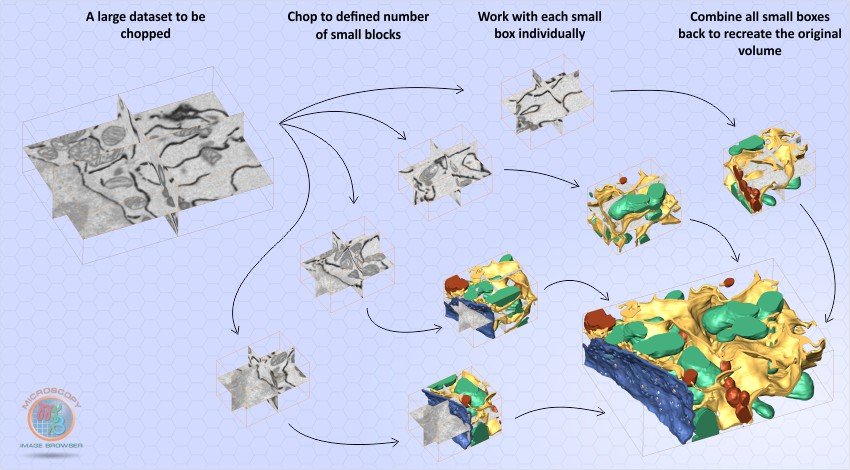
Dataset Chunking -> Chunk dataset
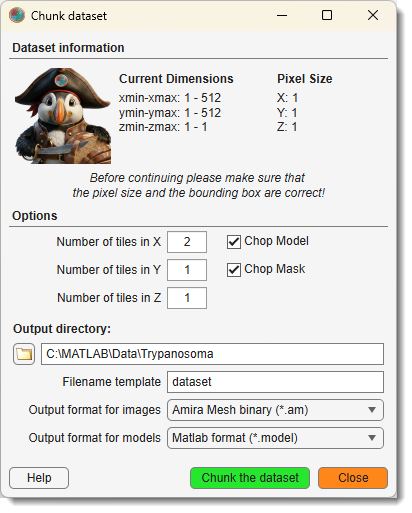
The Chunk dataset command chops a large dataset into smaller pieces.
Settings
- Number of tiles in //: define the number of resulting datasets
Example
Setting X: 2, Y: 1, Z: 1 splits the dataset into two parts: [1:width/2] and [width/2:width], where width is the original dataset’s width.
- : when checked, chops the model layer into corresponding blocks.
- : when checked, chops the Mask layer into corresponding blocks.
- : specify the directory for saving chopped datasets (via button or text input).
- : sets the naming pattern; MIB appends
_Znn_Xnn_Ynn(e.g.,_Z01_X01_Y01) to each block’s filename, wherennis the block index. -
: choose from
- Amira Mesh
- NRRD
- 3D-TIF
- HDF5 with XML header
-
: options include MATLAB, Amira Mesh, NRRD, TIF, or HDF5; saved with a
Labels_prefix.
Masks are saved in MATLAB format with the template Mask_[FN].mask, where [FN] matches the corresponding image filename.
Dataset Chunking -> Stitch dataset
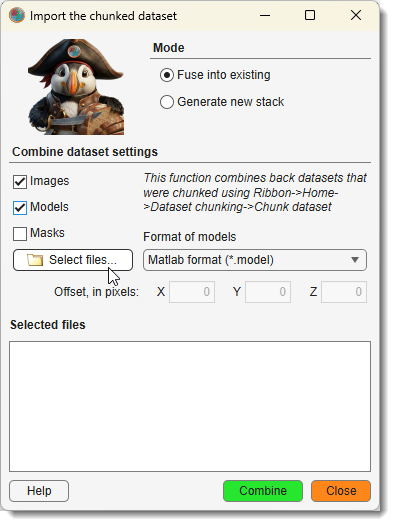
The Stitch dataset command restores a previously chopped dataset, while Fuse into dataset fuses cropped datasets into the currently open dataset. Both open the same dialog, preset to the Generate new stack or Fuse into existing mode respectively.
Modes
| Mode | Description |
|---|---|
| Generate new stack | Combines images, models, or masks into a new stack. Requires filenames with _Znn_Xnn_Ynn tags for images and Labels_ prefixes for models (default for chopped exports). |
| Fuse into existing | Merges selected datasets into the current one using BoundingBox data from the ImageDescription field. Useful for cropped datasets; includes X/Y/Z offset fields (in pixels). On a BigData dataset, a model saved at a lower resolution is fused into the matching pyramid level; the offsets remain in full-resolution pixels. |
Steps
- Choose a mode and select the types to combine (, , ).
- Press to pick files.
Filename Generation
- Image:
Huh7_CmVTag1_R2_Pos5_crop_chop_Z01-X01-Y01.am - Model:
Labels_Huh7_CmVTag1_R2_Pos5_crop_chop_Z01-X01-Y01.model - Mask:
Mask_Huh7_CmVTag1_R2_Pos5_crop_chop_Z01-X01-Y01.mask
Important!
If is checked, select only image files (not models or masks); filenames for models/masks are auto-generated. For importing models/masks into an open dataset (without ), select the actual model/mask files.
Usage Tips
Parallel Segmentation
To segment a large dataset across workstations:
- Export with desired tiles (e.g., X: 2, Y: 2, Z: 1).
- Process each chunk independently.
- Import with Generate new stack to recombine.
Offset Adjustment
Use Fuse into existing with X/Y/Z offsets to align cropped datasets that don’t match the default BoundingBox.
Back to MIB | User interface | Ribbon | Home