Datasets Panel
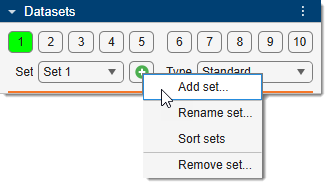
The Datasets panel manages all open datasets in MIB. It provides numbered buffer buttons to switch between datasets, a sets dropdown to organise buffers into named groups, and a dataset-type selector that controls how each dataset is stored in memory.
Overview
The panel contains three areas from top to bottom:
- Buffers 1–10 — individual dataset slots within the active set.
- Sets — named groups of buffers, with controls to add and manage them.
- Dataset type — memory/access mode for the dataset in the active buffer.
Buffer buttons

Ten numbered buttons (1 through 10) represent the dataset containers (buffers) within the active set.
to make it the active buffer — its dataset is shown in the Image Document. to open a context menu with additional options (see below) - Hover over any button to see the filename of the dataset loaded in that buffer
Button color indicates the state of each buffer:
| Color | Meaning |
|---|---|
| Bright green | Active buffer — currently displayed in the Image Document |
| Light green | Buffer contains a loaded dataset |
| Light orange | Buffer contains a loaded but not saved dataset |
| Default | Buffer is empty |
Buffer context menu
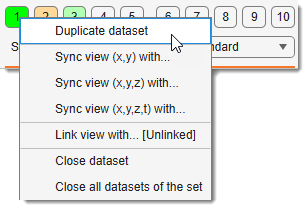
| Menu item | Action |
|---|---|
| Duplicate | Copy this dataset to another buffer (prompts for destination set and buffer) |
| Sync XY | Copy view position and zoom from another buffer |
| Sync XYZ | Copy view position, zoom, and current Z-slice from another buffer |
| Sync XYZT | Copy view position, zoom, Z-slice, and time frame from another buffer |
| Link view with… [Unlinked] | Link this buffer's view to another buffer — scrolling one updates the other |
| [Linked: A ↔ B] press to unlink | Unlink the currently linked pair |
| Close | Close the dataset in this buffer (resets it to an empty placeholder) |
| Close Set | Close all datasets in the entire current set |
Duplicate
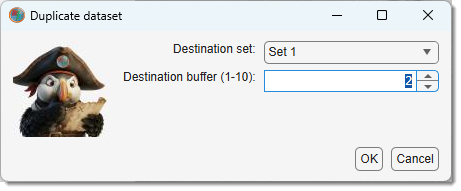
Copies the full dataset (image, labels, mask, selection, annotations) to a destination buffer. A dialog lets you choose the destination set and buffer number.
Warning
Duplicating to a non-empty buffer overwrites the existing dataset after a confirmation prompt.
Sync views
All three sync modes align the view of one buffer to match another:
| Mode | Dimensions synced |
|---|---|
| Sync XY | Pan position + zoom |
| Sync XYZ | Pan + zoom + Z slice |
| Sync XYZT | Pan + zoom + Z slice + time frame |
Warning
Both datasets must be in the same orientation (XY, ZX, or ZY) for sync to work.
Link views
When two buffers are linked, navigating in one (slice, zoom, pan) automatically mirrors the same view state in the other. Useful for comparing two registered datasets side by side.
Toggle buffers with + .
Demonstration
Warning
Both buffers must be in the same orientation before linking. Linked-view state is shown in the button tooltip and in the context menu label.
Sets
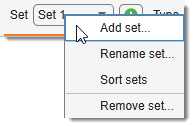
A set is a named group of 10 buffers, each capable of holding one dataset. Multiple sets allow you to organise unrelated groups of datasets independently. Each set corresponds to one Image Document tab in the main workspace.
Sets dropdown
Selects the active set. Switching sets also switches the visible Image Document tab.
| Menu item | Action |
|---|---|
| Add set | Create a new set (prompts for a name) |
| Rename set | Rename the currently active set |
| Sort sets | Sort all sets alphabetically |
| Remove set | Close all datasets in the set and remove it |
Warning
Remove set closes all datasets in that set without additional confirmation per buffer.
Add set button
Shortcut to add a new set, equivalent to Sets context menu → Add set.
Dataset types
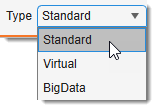
Sets the memory/access mode for the dataset in the active buffer: Standard (whole dataset in RAM), Virtual (read on demand, browse-only), or BigData (read on demand, pyramidal, with a disk-backed editable model).
When a real dataset is open, switching the type shows a confirmation first (the current dataset is closed or converted); switching the type of an empty/placeholder buffer happens silently. Choosing BigData while a dataset is open offers Convert current or New.
| Type | In memory? | Editable model? | Typical use |
|---|---|---|---|
| Standard | whole dataset in RAM | ✅ full | small–medium datasets |
| Virtual | read on demand | ❌ browse-only | quickly browse datasets too large for RAM |
| BigData | read on demand, pyramidal | ✅ disk-backed model | segment datasets far larger than RAM |
Full details
See Getting Started → Dataset types for each type's benefits and limitations, and for how BigData is implemented (pyramids, live writes, the level map and sidecar file, and the Save model options) to stay efficient on multi-gigapixel data.
Back to MIB | User interface | Panels