Preferences
The Preferences dialog lets you customize Microscopy Image Browser to suit your workflow,
from interface appearance to tool behavior and external integrations.
Open it via Ribbon → Home → Preferences.
Settings are grouped into categories, accessible through a tree on the left,
making it easy to tweak everything from fonts to undo history.
Overview
The dialog organizes settings into seven categories, shown as nodes in the Categories Tree on the left side:
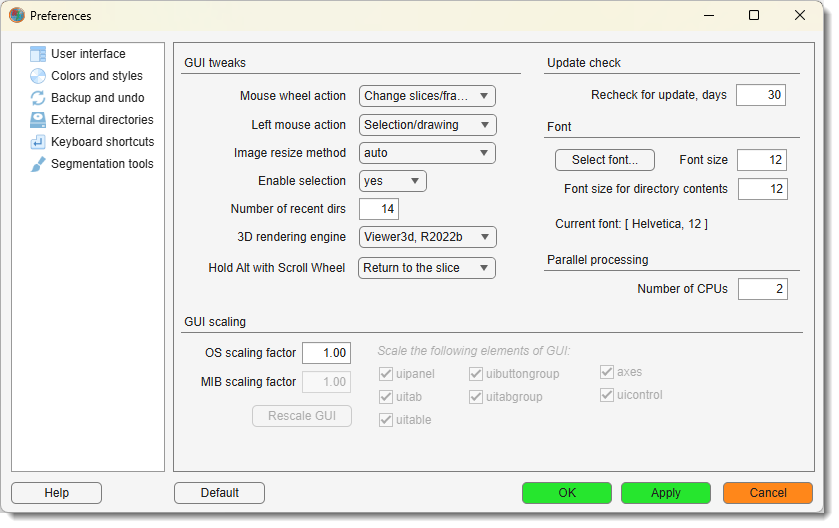
- User interface: controls fonts, GUI scaling, mouse actions, and update checks settings.
- Colors and styles: sets colors for models, masks, annotations, and contour styles.
- Backup and undo: configures undo history for 2D and 3D operations.
- External directories: specifies paths for external tools like Fiji or Python.
- Keyboard shortcuts: defines custom key bindings for MIB actions.
- Segmentation tools: adjusts settings and options for segmentation tools.
- Input / output: selects the OME-Zarr (zarr3) read/write engine, the zarr chunk cache size, and BigData label smoothing.
At the bottom, you’ll find buttons to manage changes:

- : opens help documentation for the Preferences dialog.
- : restores all settings to their original values.
- : saves changes and closes the dialog.
- : saves changes without closing.
- : discards changes and closes.
Use the Categories Tree to switch between panels. Click a node (e.g., User interface) to show its settings. Changes are saved only when you click OK or Apply.
User Interface
This category customizes how MIB’s interface looks and behaves, covering fonts, scaling, mouse interactions, and update frequency.
GUI Tweaks
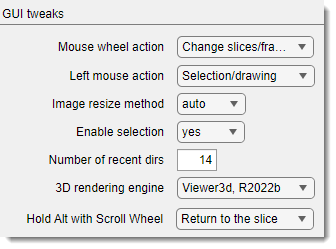
Fine-tune how the mouse and rendering work:
: a dropdown to set the mouse wheel’s function:
Zoom In/Out: zooms the image.Change slices/frames: switches between slices or time frames (default).
: a dropdown to assign the left mouse button’s role:
Pan image: Moves the image.Selection/drawing: Enables drawing and segmentation (default).
Info
selecting any of these options swaps the mouse button so that
: a dropdown to choose how images are interpolated for visualization in the Image Document:
auto: usesnearestfor >100% zoom,bicubicfor <100% (default).nearest: fastest, lower quality.bicubic: slowest, highest quality.
: a dropdown to toggle existence of the Selection layer:
yes: Enables segmentation tools (default).no: Saves memory but disables segmentation.
This setting is applied to the currently shown dataset and to every dataset loaded
afterwards. It does not affect the empty placeholder datasets that MIB creates at
startup and when a dataset is closed: those always keep the Selection layer, so the
brush and the other segmentation tools can be tried on the default image right away.
: a numeric field to set how many recently accessed directories MIB remembers.
Where to find recently used directories
The previously accessed directories are available via a dedicated dropdown in the Status Bar working directory group.
: a dropdown to select the engine for 3D visualization:
Viewer3d, R2022b: Modern engine, available in R2022b or newer version of MATLAB (default).Volshow, R2018b: Legacy engine, available in R2018b or newer .
: a dropdown to define behavior when holding Alt while scrolling :
Return to the slice: returns to the current slice upon release of Alt (default)Scroll time points: Alt + mouse wheel scrolls through time points.
Update Check
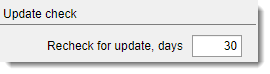
Set how often MIB looks for a new version:
: a numeric field (minimum 1) to define the interval between update checks (default: 30 days).
Font
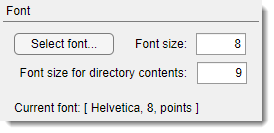
Adjust the font used across MIB interface:
- : a button that opens a font selection dialog. The chosen font is displayed in the Current Font label field below.
- : a numeric field (minimum 1) to set the font size for GUI widgets, like buttons and labels.
- : a numeric field (minimum 1) to set the font size for the file list in the Directory Contents Panel.
Parallel Processing
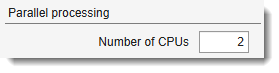
: a numeric field to set the maximum number of CPU cores used for parallel processing operations. Reducing this value frees CPU resources for other applications running on the same workstation.
Compiled (standalone) version
In the compiled version of MIB the upper limit is fixed by the number of CPU cores available on the workstation that was used to compile MIB. It cannot exceed that value even if your machine has more cores.
GUI Scaling
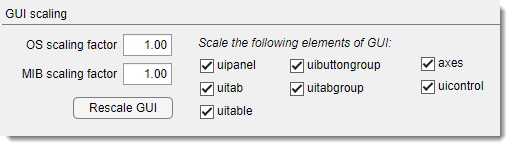
Scale MIB’s interface, useful for high-DPI screens or accessibility:
: a numeric field to input the operating system’s scaling factor (as ratio vs 100%), ensuring accurate mouse coordinates.
How to find scaling factor on Windows
Do
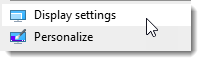
Find the scaling factor and type it as value in %% divided by 100 (i.e. 1 for the snapshot below):

: a numeric field to scale selected GUI elements, such as panels or tables specified as a ratio relative to default size.
Warning
The scaling is done relative to initial size of MIB widgets rendered at MIB startup
It is possible to configure each element specifically as on some MacOS versions the scaling needs to be done excluding some widgets.
- : scales panel containers.
- : scales tab elements.
- `: scales tables.
- : scales button groups.
- : scales tab groups.
- : scales axis displays.
- : scales other control elements like buttons.
: press the button to instantly apply scaling changes to MIB’s main window.
Warning
Press of the button is always rescales MIB interface relative to the current state. If after the initial resizing step, you feel that additional scaling is needed, try to estimate how much the scaling factor needs to be relative to the initial size of MIB interface. Set this value and restart MIB!
Colors and Styles
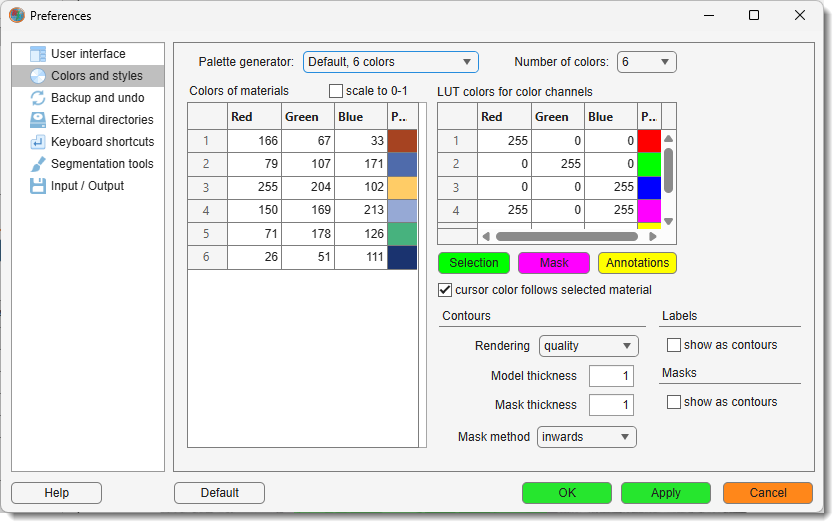
This category lets you customize colors for materials of the model, color channels, layers, and contours, as well as rendering styles.
Palette generator
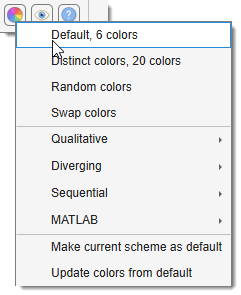
Generate color palettes from several predefined presets for visualization of materials within the Segmentation table.

- : a dropdown to pick predefined color palettes for the tables.
- : a dropdown to set the number of colors in the generated palette, depending on the selected preset.
Colors of the materials table
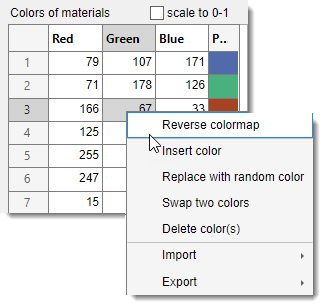
The table shows the colors of materials that define visualization of the model. The colors can be changed by typing intensity
value for each Red, Green, Blue channels in range from 0-1 or 0-255 (depending on )
or by
- Reverse colormap: press to reverse the order of colors in the palette
- Insert color: insert a new random color at the following row in the table
- Replace with random color: replace the selected color with a random color
- Swap two colors: swap the selected color with another one
- Delete color(s): delete selected color from the palette
- Import (from MATLAB or file): import a palette from the main MATLAB workspace or from a file
- Export (to MATLAB or file): export the current palette to the main MATLAB workspace or to a file
: a checkbox to normalize colors between 0 and 1, otherwise the colors are scaled between 0 and 255.
Update material colors directly from the Segmentation table
The colors can be changed via a context menu of the Segmentation table -> Recolor... 
Colors for LUT and image layers
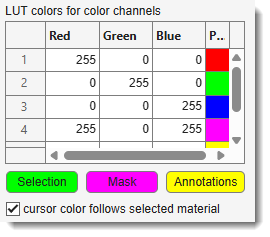
LUT Colors for Color Channels - is a table with columns for Red, Green, Blue, and a Preview, used for
definition of LUT (Look Up Table) colors to visualize individual color channels of the dataset.
The LUT color channel is also available from the View Settings panel. Whenever is checked in the View Settings->LUT table
these colors are used.
: a button to specify color to be used for rendering of the Selection layer
: a button to specify color to be used for rendering of the Mask layer
a button to specify color to be used for rendering of annotations
: when checked, the brush cursor takes the color of the material or Mask it paints into; otherwise it stays dark green
Contours
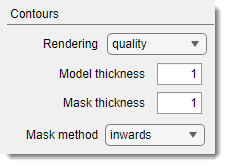
Adjust how contours are drawn for models and masks:
: a dropdown for contour rendering method:
quality: high-quality rendering (default).performance: faster, but touching objects use the earlier material’s color.
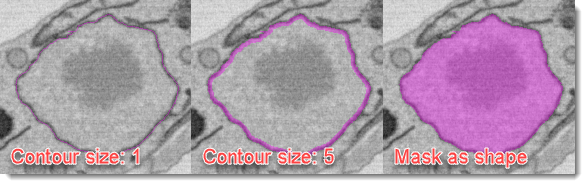
: a numeric field for line thickness in Contour mode for models (default: 1).
: a numeric field for line thickness in Contour mode for masks (default: 1).
: a dropdown for Mask contour direction:
inwards: Shrinks the mask object (default).outwards: Grows the mask object.
Labels
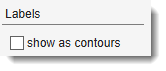
Control Labels layer appearance:
: show the Labels layer as filled shapes (default)
: show the Labels layer as contours instead of filled shapes
Quick toggle from the Segmentation panel
The contour/filled rendering for Labels can also be switched directly via the eye button in the Segmentation panel.
Masks
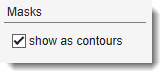
Control Mask layer appearance:
: show the Mask layer as contours instead of filled shapes (default)
show the mask as filled shape
Quick toggle from the Segmentation panel
The contour/filled rendering for Masks can also be switched directly via the eye button in the Segmentation panel.
Examples of different mask visualization styles
Backup and Undo
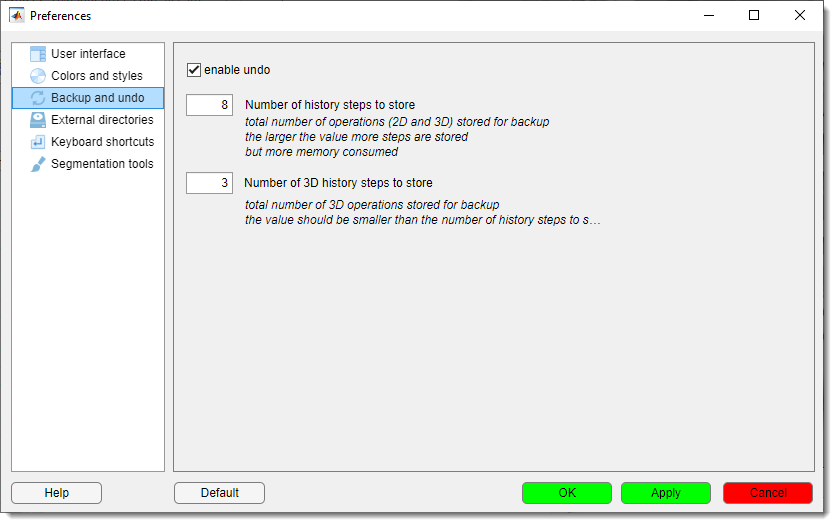
Configure undo functionality for editing operations:
: a checkbox to turn on undo support.
: a numeric field (minimum 0) for the total number of 2D and 3D operations to store. Higher values save more steps but use more memory. : a numeric field (minimum 0) for 3D operations only. Must be smaller than the total history steps.
Tip
The backup and undo system requires additional allocation of memory and slows down performance.
Balance memory usage and undo needs by setting reasonable history limits, especially for large datasets.
External Directories
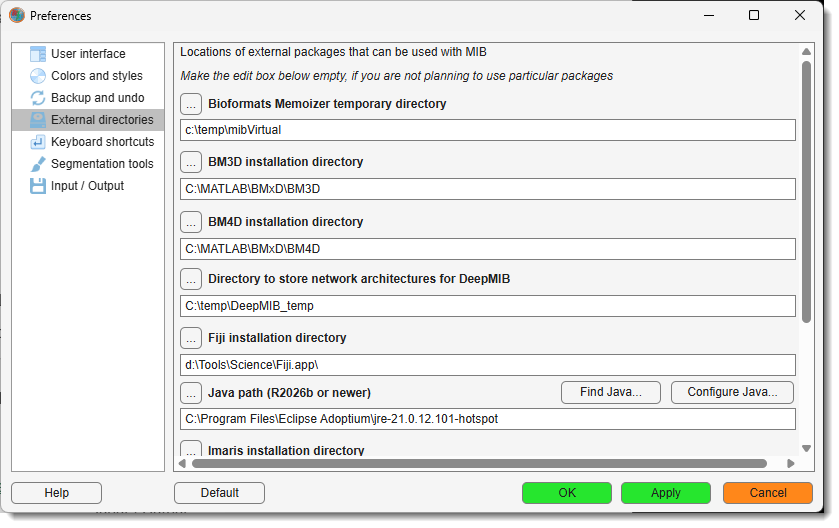
Specify paths for external tools and packages that integrate with MIB. Leave fields empty if you don’t use a particular package.
: a text field and to set the temporary directory for Bioformats Memoizer.
Use any temporary directory available on your system. The created files can be removed any moment.
: a text field and
to set the path to BM3D 4.0 or newer (MATLAB version only), see more in the System requirements section.
: a text field and
to set the DeepMIB and SAM network storage paths.
: a text field and to set the path
to Fiji, see more in the System requirements section.
: a text field and
to set the path to Imaris, see more in the System requirements section.
: the Java that MIB uses for Bio-Formats,
Fiji, Imaris and OMERO; MATLAB R2026b and newer come without Java.
lists the Java installations found on the computer,
connects MATLAB to the selected Java, which takes
effect after restarting MATLAB and MIB. A path changed without pressing
is connected when pressing OK or Apply.
See Enable Java for step-by-step instructions.
: a text field and to set
the path to OMERO, see more in the System requirements section.
: a text field and
button to set the path to Python, required for SAM, see more in the System requirements section.
: a dropdown to choose how MIB launches the Python
interpreter (used by SAM and other Python-based tools):
OutOfProcess: Python and PyTorch run in a separate process with their own GPU (CUDA) context (default, recommended).InProcess: Python runs inside the MATLAB process, sharing its GPU context.
Why OutOfProcess is the default
In InProcess mode Python shares MATLAB's GPU (CUDA) context. Running DeepMIB
training or prediction resets that context (via gpuDevice), which frees the GPU memory still held by a
loaded SAM model. The next SAM click then fails with CUDA error: an illegal memory access was encountered,
and MATLAB must be restarted. OutOfProcess isolates Python in its own process, so DeepMIB and SAM no longer
interfere. Use InProcess only as a fallback on systems where the out-of-process Python host fails to launch.
Note
Changing this setting takes effect the next time the Python environment is initialised. If Python is already loaded in the current session, restart MIB (or MATLAB) for the new mode to apply.
Keyboard Shortcuts
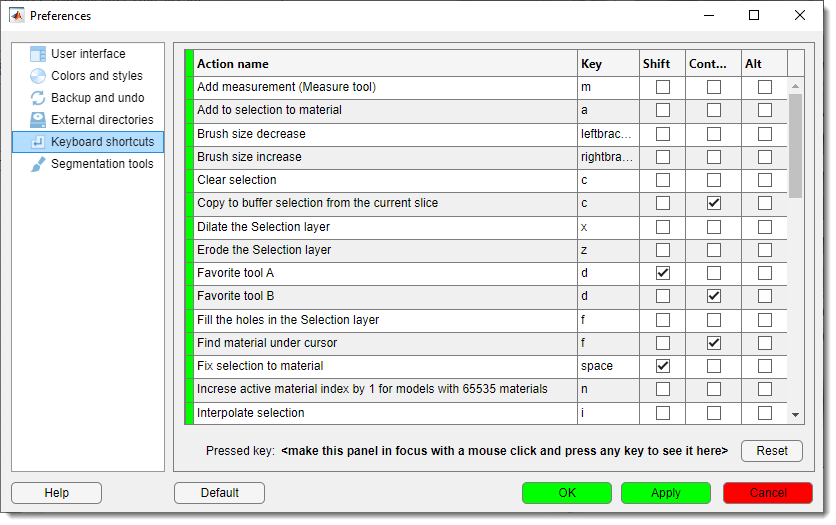
Customize key bindings for quick access to MIB actions:
- Shortcuts Table: A table to edit key bindings. Click a cell to assign a key combination.
- Pressed Key: A label showing the last key pressed (e.g., Ctrl + S) when the panel is active. Click the panel and press a key to test.
- Reset: A button to restore default key shortcuts.
Warning
Ensure the Keyboard Shortcuts panel is selected to capture key presses for testing.
Segmentation Tools
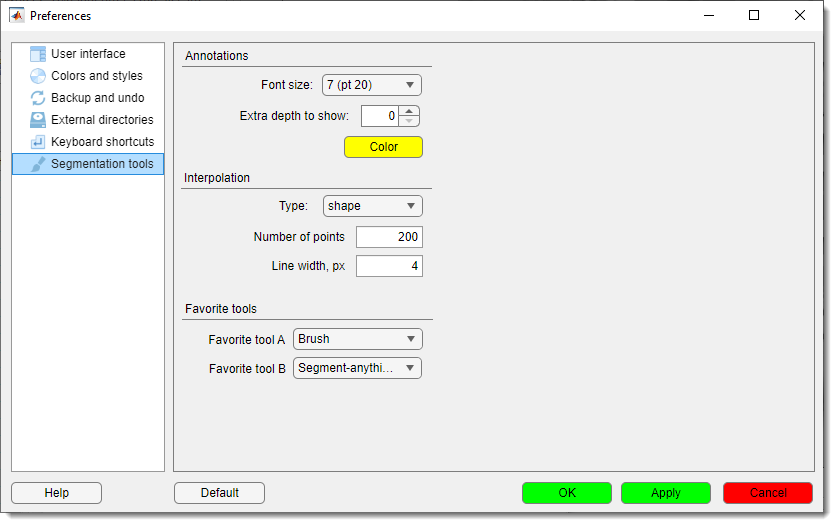
Adjust settings for segmentation tools, including interpolation, annotations, and favorites.
Annotations
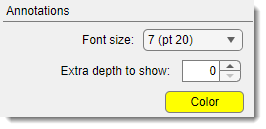
Customize how annotations appear:
: a dropdown for annotation font size: - Options: 1 (pt 8), 2 (pt 10), 3 (pt 12), 4 (pt 14), 5 (pt 16), 6 (pt 18), 7 (pt 20) (default: 1).
: a spinner (minimum 0) to extend annotation visibility
across slices (e.g., 3 shows annotations 3 slices before and after).
: a button to pick the annotation color (same as in Colors and Styles).
Tip
Style for the annotations can also be specified in the Annotation list -> Settings window
Interpolation
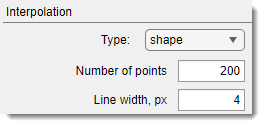
Configure how MIB interpolates between points:
: a dropdown to choose the interpolant:
shape: Best for blobs (default).line: Suited for non-closed linear objects.
: a numeric field for points used in interpolation.
Higher values improve quality but slow performance.
: a numeric field for the thickness of lines in line interpolation.
Favorite Tools
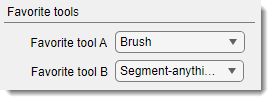
Set quick-access segmentation tools:
: a dropdown to select a tool accessed via Shift+D:
- Options: 3D ball, 3D lines, Annotations, Brush, BW Thresholding,
Drag & Drop materials, Lasso, MagicWand-RegionGrowing, Membrane ClickTracker, Object Picker,
Segment-anything model, Spot (default: Brush).
- : a dropdown to select a tool accessed via Ctrl+D:
- Same options as Favorite tool A (default: Segment-anything model).
Input / Output
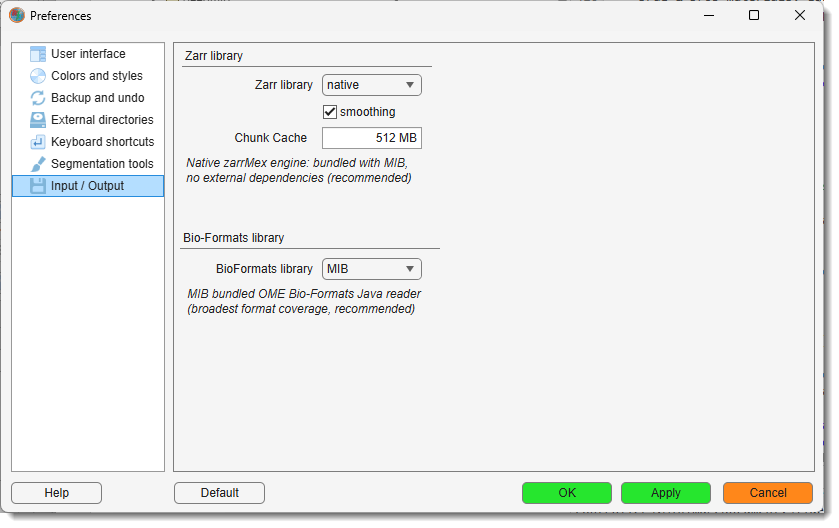
This category configures reading and writing of OME-Zarr v3 (.zarr3) datasets, used by the
BigData and virtual dataset modes.
Zarr library
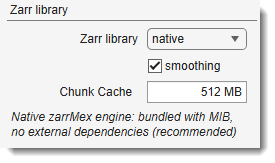
: a dropdown to select the engine used for reading and writing zarr data:
native: the bundled zarrMex engine - no external dependencies (default, recommended).-
python: the zarr-python library, called through the Python interpreter set in External directories → Python installation path. Requires thezarrandnumpypackages installed in that environment. Reading a remote (HTTP/HTTPS) store with this engine additionally requiresaiohttpandrequests, which zarr-python uses to fetch chunks over the network:
A short description of the selected library is shown in the label beneath the dropdown. The setting takes effect immediately on / - no restart needed.
Info
Metadata (array/group creation, attributes, resizing) is always handled by the native engine for an identical on-disk structure; only the bulk pixel read/write honours this selection.
This dropdown applies to zarr v2 and v3 alike: it selects an engine, never a format. Both engines read and write both formats, and return identical data.
Python is optional
Since the zarrMex engine gained Zarr v2 support, no zarr dataset needs Python - v2 and v3,
local and remote, image and model. The native engine reads remote stores with HTTP range
requests. Python is only involved if you deliberately select the python engine above, which is
worth doing only to cross-check a store against the reference implementation.
The one thing that could override this choice is a store whose compressor declares a setting
the native engine does not recognise. The engine rejects such an array outright, so MIB reads
that array with zarr-python and reports it in the command window; the rest of the session
stays native, and only that fallback needs the packages listed above. No store is currently
known to need it - the optional checksum flag some tools write next to the zstd compression
level used to trigger it, and the engine now accepts it.
: memory, in megabytes, held for decoded zarr chunks (default: 512). Applies to zarr v2 and v3, local and remote, both engines.
A chunk is the smallest unit a zarr store hands over, and volumes are commonly chunked for 3D
access rather than for browsing one plane at a time - 64 x 128 x 128 is typical, meaning every
chunk carries 64 slices. Without a cache each slice change re-fetches and re-decodes those chunks
and keeps only one plane of each. With it, the other 63 slices are already in memory.
The effect is dramatic on a remote store and still worthwhile locally, where it saves the decode rather than the download. Measured on a remote OME-Zarr v2 volume at full resolution: ~2 s per slice change without the cache, ~0.01 s with it, and panning back to a region already visited is equally free.
Set it to 0 to disable caching entirely - the escape hatch on a machine short of memory. When the budget is reached the least recently used chunks are dropped, so the figure is a ceiling, not an allocation. Lowering it releases the memory as soon as is pressed.
The same value can also be changed in the Import from URL / Zarr dialog, where it takes effect without pressing Apply.
Tip
512 MB holds roughly eight full-resolution screenfuls of a 64 x 128 x 128 store. Raise it if
you work at full resolution on a remote dataset and have the RAM; there is no benefit in setting
it larger than the volume you actually browse.
: a checkbox controlling how a segmentation edit made at a low-magnification (zoomed-out) level of a BigData model is propagated into the higher-resolution pyramid levels (default: enabled).
- When enabled, coarse edits are reconstructed with a signed-distance transform so boundaries appear as smooth curves instead of blocky steps when you zoom in.
- When disabled, a faster nearest-neighbour upsampling is used, leaving blockier boundaries.
Note
Smoothing rounds the staircase pattern of a coarse edit but cannot add detail finer than the level you drew at — draw at a higher magnification for crisp boundaries.
Back to MIB | User Interface | Ribbon | Home