The Brush Tool
BigData mode: supported
The Brush works with BigData datasets. Strokes are applied at the displayed pyramid level and propagated to all resolution levels on disk.
Overview
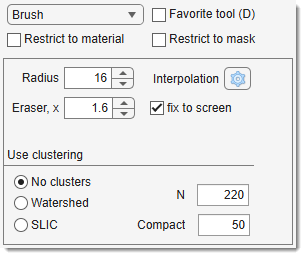
Use the brush to make selections, with size regulated by the edit box
Controls
- + Mouse wheel: change brush size.
- None or +
: paint with brush. In the / modes, paints the stroke as a standard brush, without snapping to superpixels. - +
: start eraser (radius amplified by ). - in the Selection and View settings panel: autofill areas after brushing.
Tip
Connect objects across slices using Interpolation ( shortcut or Ribbon → Selection -> Interpolate).
Widgets of the brush panel
- Radius: define brush radius in pixels.
- Eraser, x: define eraser size multiplier.
- : when checked, the brush radius is measured in screen pixels rather than image pixels. The cursor circle stays the same size on screen regardless of zoom — zooming in paints fewer image pixels (fine detail), zooming out paints more.
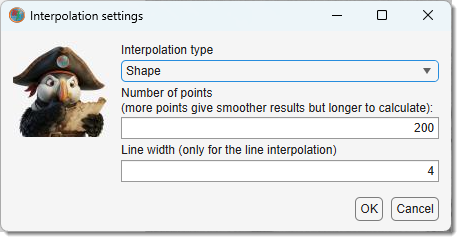 Interpolation settings: modify settings via dialog (also adjustable in
Ribbon → Home -> Preferences -> Segmentation tools
or in toolbar).
- : the standard mode, selection of pixels under the brush cursor.
- : cluster pixels with the watershed algorithm for selection as clusters.
- : cluster pixels with the SLIC algorithm for selection as clusters.
Superpixels with the Brush tool
Enable Superpixels mode with Watershed
or SLIC checkboxes.
The brush selects groups of pixels (superpixels) instead of individual pixels.
Hold Shift while drawing to paint that stroke with the standard brush instead, which is handy
for touching up a border that the superpixels do not follow. The eraser (Ctrl) always
works pixel-wise as well.
Undo the last superpixel with Ctrl + Z.
Algorithms:
- SLIC: Simple Linear Iterative Clustering by Radhakrishna Achanta et al., 2015 (good for distinct intensities).
- Watershed: Good for distinct boundaries.
Adjust superpixel size and shape with
- (default, 220 for SLIC, 15 for Watershed)
- Compact/Invert (higher compactness = more rectangular shapes; Invert: 1 for dark boundaries, 0 for bright).
Tip
Use
Ctrl + Alt + mouse wheel or
Ctrl + Alt + Shift + mouse wheel to adjust .
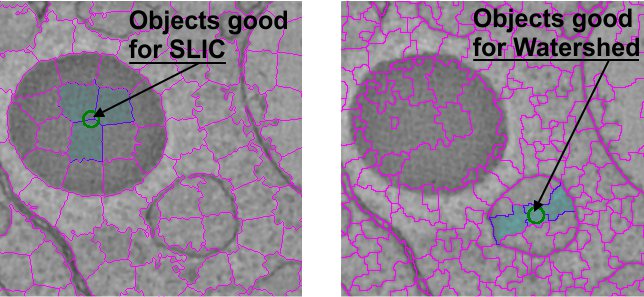
Example of SLIC and Watershed superpixels
SLIC boundaries use drawregionboundaries.m by Peter Kovesi.
Note
- Note: Requires compiling slicmex.c for your OS.
References
- Achanta et al., SLIC Superpixels Compared to State-of-the-art Superpixel Methods, IEEE TPAMI, 2012.
- Achanta et al., SLIC Superpixels, EPFL Technical Report, 2010.
Presets
Use the following key shortcuts to define and restore presets
- Shift+1, Shift+2, Shift+3 - store preset 1, 2, or 3 correspondingly
- 1, 2, 3 - restore preset 1, 2, or 3 correspondingly
Each preset stores the Radius, Eraser, x, state, and clustering mode.
Back to MIB | User interface | Panels | Segmentation