User Interface
Overview
The User Interface of Microscopy Image Browser (MIB) is designed to provide an intuitive and efficient way to interact with your datasets. This section covers the key components that make up MIB’s interface, offering tools and controls for navigation, visualization, and analysis. Whether you're adjusting image settings, applying filters, or customizing workflows, understanding these elements will enhance your experience with MIB.
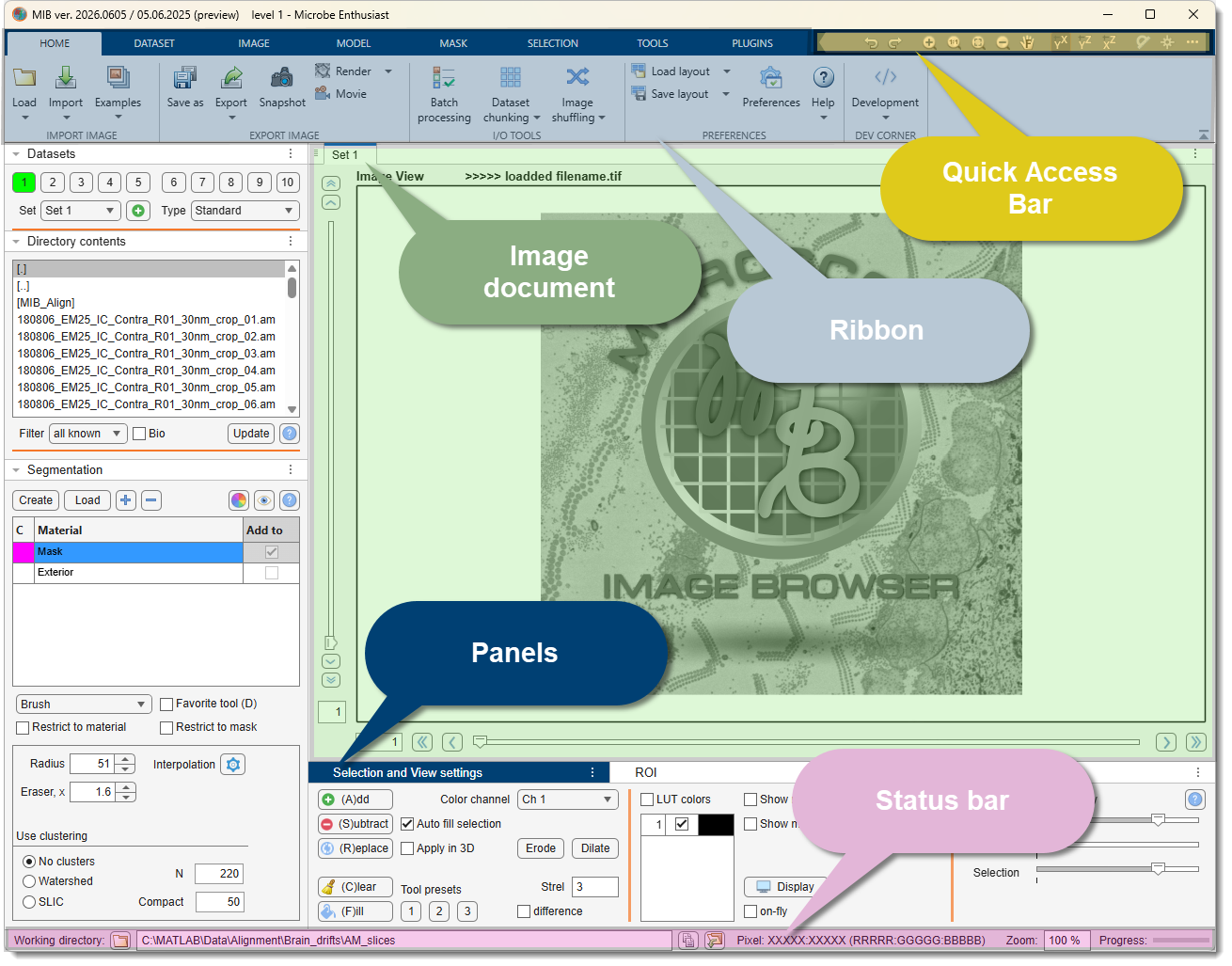
MIB3 user interface
Components
Explore the following subsections to learn more about each part of the MIB user interface:
- Ribbon: comprehensive options under ribbon tabs — Home, Dataset, Image, Model, Mask, Selection,
- Tools, and Plugins — for managing datasets, their models, and settings.
- Quick Access Bar: quick-access buttons for common tasks like changing view orientations or toggling ROI or blockmode switches.
- Image Document: the central workspace where each dataset is displayed as a dockable, tabbed document; includes slice/frame navigation, mouse interactions, and drag-and-drop loading.
- Datasets: panel for managing dataset buffers and sets — switch between up to 10 open datasets per set, duplicate, sync, or link their views, and set the memory access mode.
- Panels: detailed controls for image viewing, segmentation, and processing, such as the Directory Contents and Segmentation Panel.
- Status Bar: strip at the bottom of the window with the working directory picker, live pixel info, and zoom control.
- Plugins: extend MIB’s functionality with custom tools and integrations. The plugins are available from the Plugins section of the ribbon.
- Key and Mouse Shortcuts: speed up your workflow with keyboard and mouse combinations tailored for efficiency.
Each component is designed to work together seamlessly, providing a flexible environment for both novice and advanced users.
Getting started
New to MIB?
See Getting Started → First dataset for a full walkthrough from launching MIB to your first segmentation.
To begin,
- select a working directory with images
How to select the working directory
You can use:
- the Load button in the Home ribbon
- widgets of the Statusbar
- or just drag and drop image files to the Image document, the directory will be automatically updated
- the list of files will be displayed in Panels -> Dir contents
- select the datasets using combinations of
, - Ctrl+
, - Shift+
- do
and select Combine selected datasets - Adjust display settings in the View Settings Panel.
- Navigate slices with the mouse wheel and use key shortcuts such as Q to zoom-out and W to zoom-in
For detailed guidance, refer to the subsections linked above for additional resources.
Back to MIB