Segment Anything Model
BigData mode: partially supported
The Interactive, Landmarks and Interactive 3D modes work with BigData datasets (a model must already exist). Automatic everything is not available in BigData mode — it produces a 65535-material model that the disk-backed BigData model cannot hold.
Overview
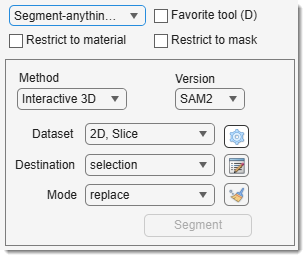
Uses Segment-anything model (SAM1 or SAM2) for object segmentation with one or few mouse clicks.
General information and references
Developed by Meta AI Research, FAIR, SAM segments objects or entire images with minimal clicks.
- SAM-1: https://segment-anything.com
- SAM-2 [recommended]: https://ai.meta.com/sam2/, faster than SAM-1; can also work in 3D
Implemented in MIB via an external Python interpreter. See Requirements and installation.
Warning
GPU is recommended (30–60x faster than CPU).
SAM-1 Models in MIB
- vit_b (0.4Gb): fastest (x1), less precise.
- vit_l (1.2Gb): moderate speed (~x1.4 slower), better predictions.
- vit_h (2.5Gb): slowest (x2.0 slower), best predictions.
Reference
Reference: Kirillov et al., Segment Anything, arXiv:2304.02643.
- vit_b Electron Microscopy (0.4Gb): fast, for EM datasets.
- vit_b Light Microscopy (0.4Gb): fast, for LM datasets.
- vit_h Electron Microscopy (2.5Gb): best results, for EM.
- vit_h Light Microscopy (2.5Gb): best results, for LM.
- vit_b for EM Generalist (0.4Gb): pretrained for mitochondria in EM.
- vit_b for EM Boundaries (0.4Gb): pretrained for membrane organelles in EM.
Reference
Archit et al., Segment Anything for Microscopy, bioRxiv.
SAM-2 Models in MIB
- sam2.1_hiera_small (0.18Gb)
- sam2.1_hiera_base_plus (0.32Gb)
- sam2.1_hiera_large (0.90Gb)
- sam2_hiera_small (0.18Gb)
- sam2_hiera_base_plus (0.32Gb)
- sam2_hiera_large (0.90Gb)
Reference
Ravi et al., SAM 2: Segment Anything in Images and Videos, arXiv:2408.00714.
Requirements and installation instructions
SAM requires installation:
- SAM-1: https://mib.helsinki.fi/downloads_systemreq_sam.html
- SAM-2: https://mib.helsinki.fi/downloads_systemreq_sam2.html
Info
SAM networks are automatically downloaded, connected, and initialized in MIB.
Customize via sam_links.json (SAM-1) or sam2_links.json (SAM-2) in the MIB/Resources subfolder, or specify a new location in SAM settings available
within the SAM panel.

How to use
Interactive
Default mode, segments the visible image area:
- : choose selection, mask, or model for results.
- :
- : replace destination layer objects with new results.
- : add results to the destination layer.
- : subtract results from the destination layer.
- : add to the selected material and create a new one (for 65535+ models, model or selection only).
: specify a point on an object to segment. - +
: expand the object (positive seed). - +
: constrain the object from the clicked area (negative seed).
- +
- : perform 3D segmentation by clicking on one slice, scrolling, and using
+
. Interpolates seeds (positive/negative clicks) across slices.
Warning
- Note 1: Not available for SAM1.
- Note 2: It is recommended to use the Interactive 3D mode instead as it is faster and more intelligent
Interactive 3D
Best for 3D segmentation:
- : same as above.
: start an object. - Shift +
: expand the object (positive seed). - Ctrl +
: constrain the object from the clicked area (negative seed). - Scroll to another slice, use Shift +
to segment between slices.
Warning
- Note: Only the image area visible in the Image Document panel is processed.
Landmarks
Process full images using annotations:
- : select stack portion.
- and : define layer and mode (see Interactive).
-
Use
to add annotations: -
Value=1 for object, positive seed;
- Value=0 for background, negative seed).
Tips
- Use -> to prioritize value.
- Uncheck to skip the dialog.
- Ctrl +
: remove the closest annotation. - Access the list with
 .
. - Press to segment.
- Use to remove landmarks after successive segmentation
Automatic everything
Automatically segments all objects into a new model:
- : select stack portion.
- Press to segment.
SAM settings
Press  to open settings.
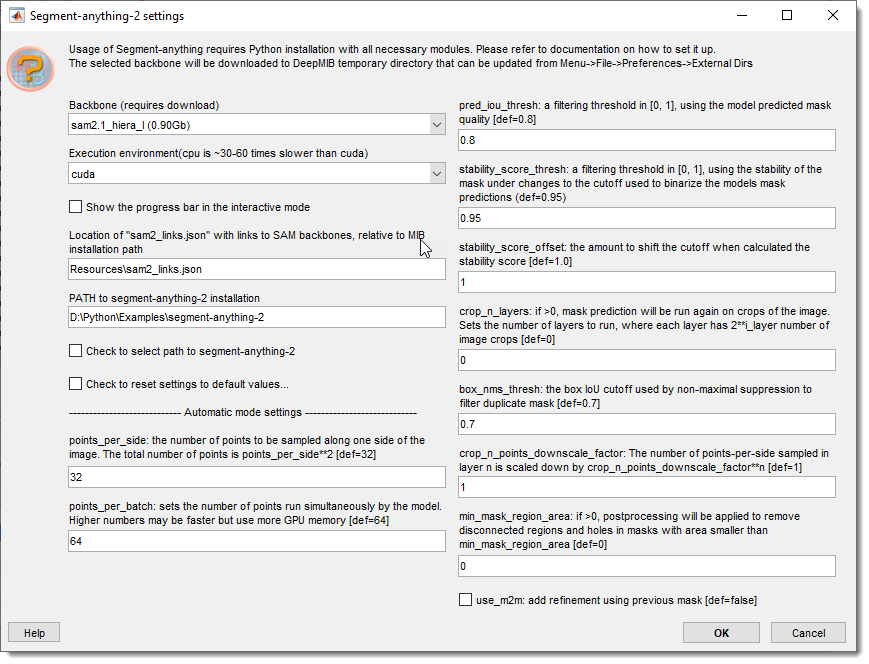
- : choose a pretrained backbone (see General information).
- : select cuda (GPU) or CPU (slower).
- : toggle progress bar.
- : set the unzipped package location
(use for a dialog). - : drop mask regions smaller than this area, in pixels of the segmented image (
0= keep everything).
Stray specks next to the segmented object
Both models return a continuous field of mask scores and binarize it at a fixed cutoff, so a structure elsewhere in the view that scores just above the cutoff is kept with the same weight as the object you clicked on. It shows up as one or two small blobs some distance away from the real object.
Those blobs are far smaller than the object, so setting to a few hundred pixels removes them without touching the object itself. Raising it too far will also discard the smaller parts of a genuinely multi-part object.
The area counts pixels of the image the model was given. In the interactive methods that is the currently shown block, and for BigData datasets it is the block at the displayed pyramid level - so a value tuned at one zoom level does not carry over to another.
Presets
Use the following key shortcuts to define and restore presets
- Shift+1, Shift+2, Shift+3 - store preset 1, 2, or 3 correspondingly
- 1, 2, 3 - restore preset 1, 2, or 3 correspondingly
Back to MIB | User interface | Panels | Segmentation