The Magic Wand + Region Growing Tools
BigData mode: supported
Both tools work with BigData datasets; the region is read at full resolution around the clicked point.
Overview
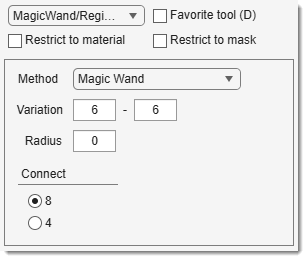
Selects pixels with a mouse click using one of two intensity-based methods, chosen from the dropdown.
Demo
Methods
Magic Wand
Selects all pixels that are connected to the clicked seed point and whose intensity lies within an adjustable range around the seed value. The range is defined by two fields:
- left field — lower bound shift: pixels with intensity <
seed − leftare excluded - right field — upper bound shift: pixels with intensity >
seed + rightare excluded
Connected pixels are found using MATLAB's bwselect at the selected connectivity (8/26 or 4/6 for 2D/3D).
Region Growing
Grows a region outward from the clicked seed point using a fast MEX-based algorithm (C. Wuerslin, University of Tübingen). A neighbouring pixel is added to the region if its intensity differs from the region's current mean intensity by no more than the value. The region expands iteratively until no more pixels satisfy this criterion.
- Only the left field is active in this mode.
- Connectivity is fixed internally (4-connected in 2D, 6-connected in 3D); the Connect radio buttons have no effect.
Widgets and parameters
- : select
Magic WandorRegion Grow. - : intensity threshold relative to the seed value.
- Magic Wand: left field = lower bound shift; right field = upper bound shift.
- Region Growing: left field only — maximum intensity difference from the growing region's mean.
- Connect — / : connectivity used by the Magic Wand - 8/26-connected (default) or 4/6-connected (2D/3D). Not used by Region Growing.
- : limit the selection to pixels within this distance from the seed in pixels (0 = no limit).
Selection modifiers
: replace existing selection with the new one. - Shift +
: add new selection to the existing one. - Ctrl +
: remove new selection from the current one.
Info
Works in 3D
Requires checked in the Selection and View settings panel
Presets
Use the following key shortcuts to define and restore presets
- Shift+1, Shift+2, Shift+3 - store preset 1, 2, or 3 correspondingly
- 1, 2, 3 - restore preset 1, 2, or 3 correspondingly
Back to MIB | User interface | Panels | Segmentation