Image Ribbon Tab
Back to MIB | User interface | Ribbon
Overview
Image processing functions.

Convert Section
Mode
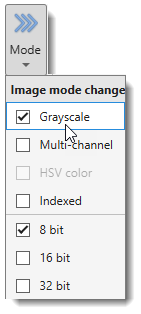
Change the mode or color depth of the dataset.
- Grayscale: convert to grayscale by removing color information.
- Multi-channel: convert to a multi-channel (RGB) color space.
- HSV color: convert to the HSV (hue, saturation, value) color space.
- Indexed: convert to indexed colors (not implemented for True Color images).
- 8 bit: convert to 8-bit; intensities are scaled to preserve adjustments from the Display dialog.
- 16 bit: convert to 16-bit; intensities are scaled to preserve original contrast.
- 32 bit: convert to 32-bit; intensities are scaled to preserve original contrast.
Image adjustments Section
Adjust display

Starts a dialog to adjust display settings or resample image intensities. See more in the Adjust display window section.
Color channels
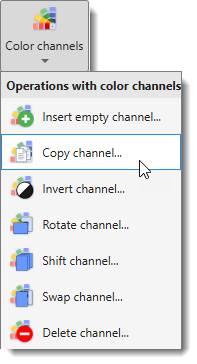
Perform actions with color channels of the image.
The Color channels dropdown contains:
- Insert empty channel...: insert an empty channel (all pixels intensity 0) at a specified position.
- Copy channel...: copy one channel to another position.
- Invert channel...: invert intensities of a specified color channel.
- Rotate channel...: rotate a specified color channel.
- Shift channel...: shift a channel by X and Y pixels.
- Swap channel...: swap two color channels.
- Delete channel...: delete a specified color channel from the dataset.
Color channel operations are also available from the Colors table in the View settings panel.
Contrast
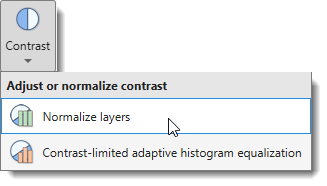
Adjust or normalize image contrast. For linear contrast stretching, use the Image Adjustment dialog via the button in the View Settings panel.
The Contrast dropdown contains:
Normalize layers
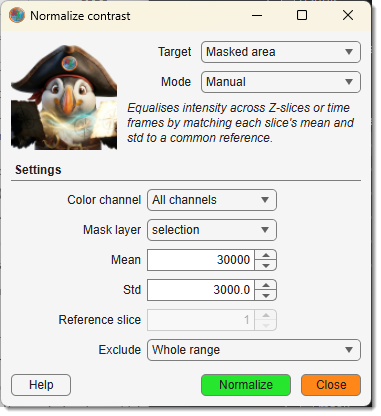
Normalizes image intensities slice-by-slice across Z or time to reduce illumination variation.
See more on Normalize layers
Contrast-limited adaptive histogram equalization
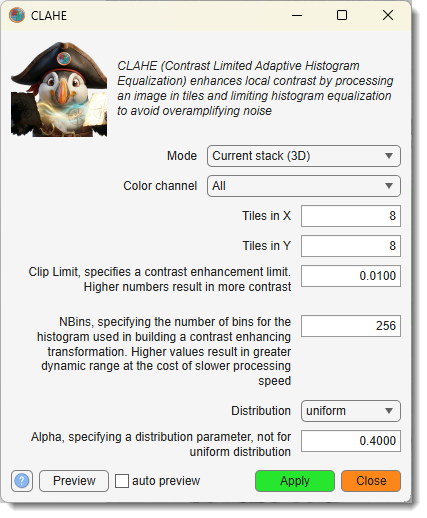
CLAHE enhances contrast locally in small rectangular tiles rather than globally, then blends the tiles with bilinear interpolation to avoid sharp boundaries. A clip limit suppresses noise amplification in uniform areas.
See more on CLAHE
Invert
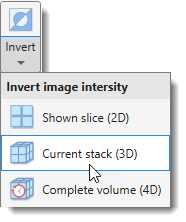
Invert image intensities.
Key shortcut: Ctrl+I
The Invert dropdown contains:
- Shown slice (2D): invert only the currently shown slice.
- Current stack (3D): invert the current Z-stack.
- Complete volume (4D): invert the complete dataset.
Visualization
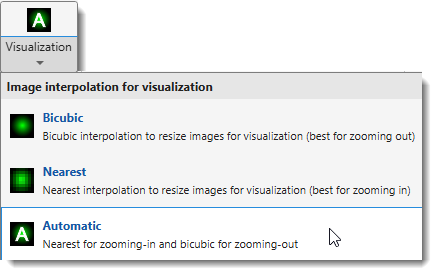
Select the interpolation method used when rendering the image for display.
The Visualization dropdown contains:
- Bicubic: bicubic interpolation (best quality when zooming out).
- Nearest: nearest-neighbour interpolation (best for zooming in, preserves pixel boundaries).
- Automatic: nearest when zooming in, bicubic when zooming out.
Image tools Section
Image filters
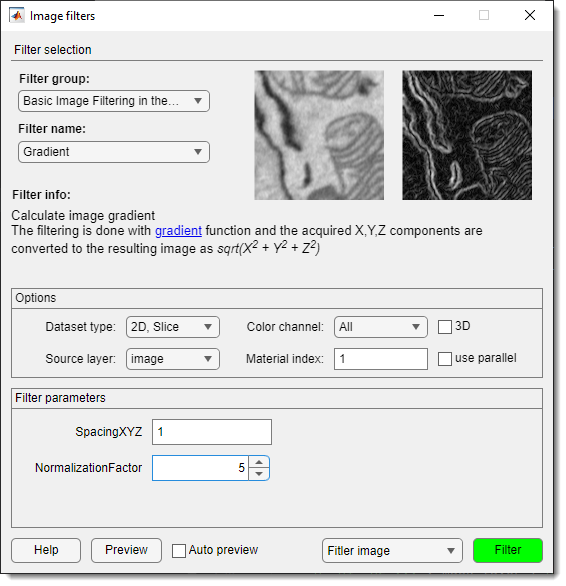
Opens a dialog with image filters in four categories:
- Basic image filtering in the spatial domain
- Edge-preserving filtering
- Contrast adjustment
- Image binarization
See the Image Filters for details.
Image tools
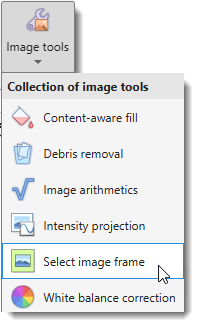
A collection of specialised image processing tools.
The Image tools dropdown contains:
Content-aware fill
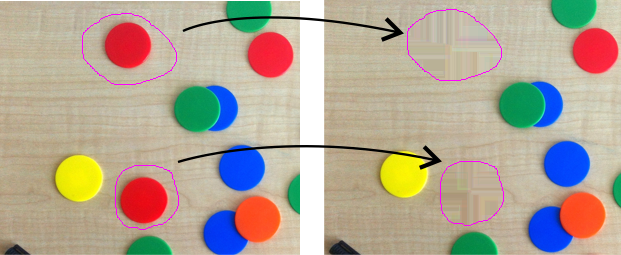
Reconstruct selected areas using information from neighboring regions.
- See more on content-aware fill using inpaintCoherent
- See more on content-aware fill using inpaintExemplar
Debris removal
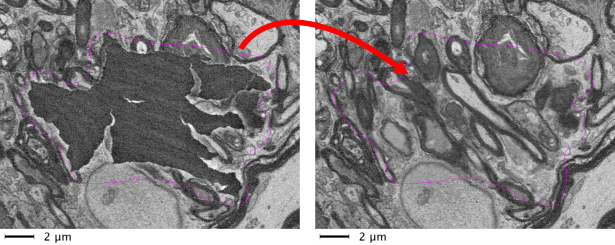
Automatically or manually restore areas of volumetric datasets corrupted with debris. Areas can be detected automatically or selected into the Mask or Selection layers.
See more on Debris removal
Image arithmetics
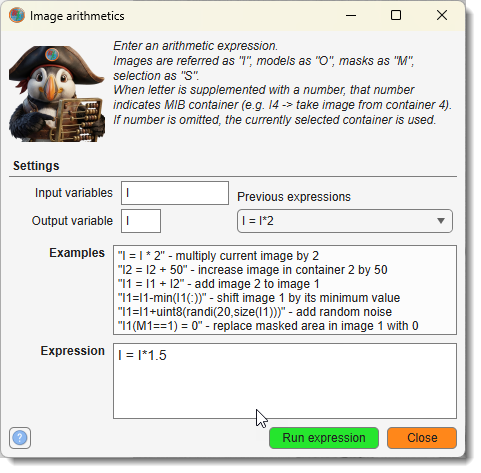
Use MATLAB syntax to apply custom arithmetic expressions to Image, Model, Mask, or Selection layers.
Limitations
Only in MIB for MATLAB
See more on Image arithmetics
Intensity projection
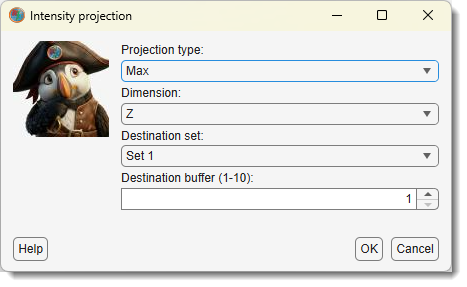
Generate intensity projection across any dimension of the loaded dataset.
See more on Intensity projections
Select image frame

Detects the frame (an area of uniform intensity touching the image edge). The detected area can be assigned to the Selection or Mask layers or replaced with another color in the Image layer.
See more on Select image frame
White balance correction
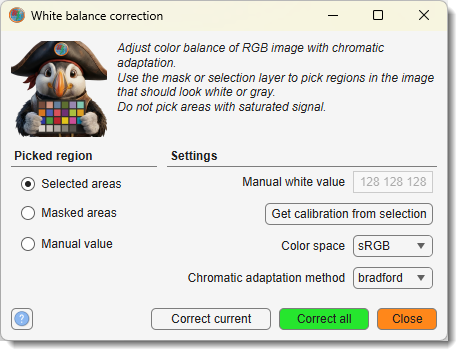
Corrects white balance of the dataset. Select an area that should be white or gray and assign it to the Mask or Selection layers, or use Manual mode to provide an RGB value directly.
See more on White balance correction
MorphOps
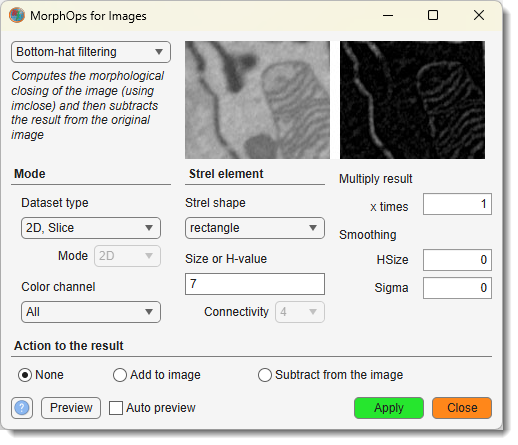
Applies morphological operations to images. The processed image can be added to or subtracted from the existing image (see Additional action to the result panel).
The MorphOps dropdown contains: Bottom-hat filtering, Clear border, Morphological closing, Dilate image, Erode image, Fill regions, H-maxima transform, H-minima transform, Morphological opening, Top-hat filtering.
See more on Morphological operations
Intensity profile
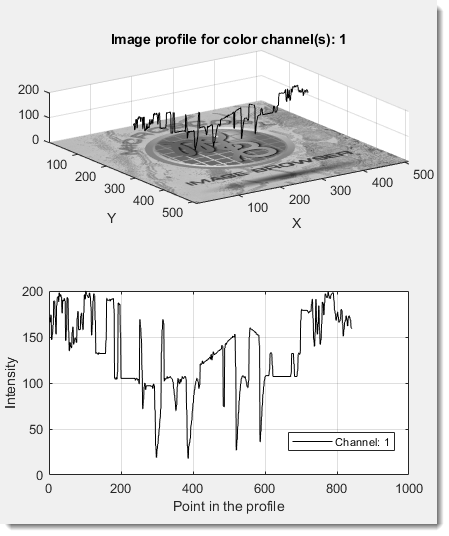
Generates an intensity profile of the image data.
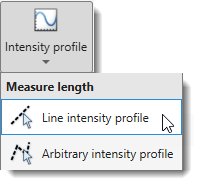
The Intensity profile dropdown contains:
- Line intensity profile: profile along a straight line.
- Arbitrary intensity profile: profile along a user-drawn path.
For intensity profiles, use the Measure tool.
Back to MIB | User interface | Ribbon