Object Picker
BigData mode: not supported
Object Picker is not available for BigData datasets. It relies on whole-volume object statistics and in-memory pixel-index operations that a disk-backed BigData model does not provide. Use the Brush, Magic Wand or Region Growing instead.
Overview
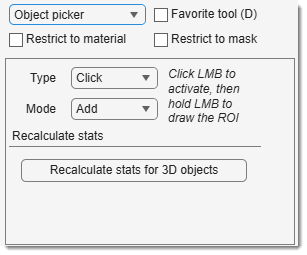
Fast selection of objects from Mask or Model layers, depending on the selected row in the Segmentation table.
Works in 3D (enable in the Selection and View settings panel).
Object picker for 3D objects
3D mode requires object quantification.
Select the material in the Segmentation table and press
(available when in the Selection and View settings panel is checked).
Info
Advanced filtering of objects is available via
- Ribbon → Mask -> Quantification
- Ribbon → Model -> Quantification.
Object Picker selection modes
- 1. Single Click:
selects an object from Mask/Model.
Warning
Note 1: Sensitive to connectivity value selected from the Magic Wand tool.
Note 2: In 3D, uses statistics generated by (recalculate if layers change).
- 2. Lasso: Select with lasso (/Shift/Ctrl +
, then hold and drag). Works in 3D if in the Selection and View settings panel is checked. - 3. Rectangle or Ellipse: Similar to lasso, but with rectangular/elliptical shapes. Works in 3D.
- 4. Polyline: Draw a polygon point-by-point (start with
, finish with double-click or ). Works in 3D. - 5. Brush: Select areas with a brush (size set in the Brush edit box).
- 6. Mask within selection:
creates a selection intersecting Mask/Model. Ctrl + subtracts Mask from selection. Sensitive to .
Selection modifiers
- None or +
: add selection to the existing one. - Ctrl +
: remove selection from the current one.
Presets
Use the following key shortcuts to define and restore presets
- Shift+1, Shift+2, Shift+3 - store preset 1, 2, or 3 correspondingly
- 1, 2, 3 - restore preset 1, 2, or 3 correspondingly
Back to MIB | User interface | Panels | Segmentation