Directory Contents Panel
Overview
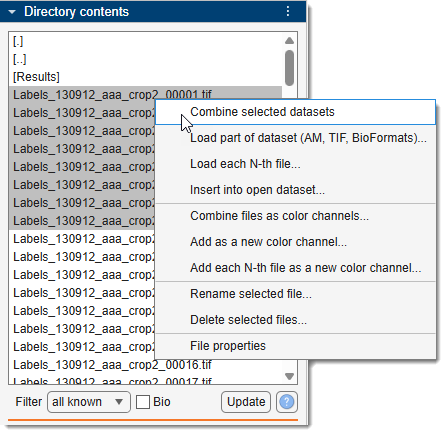
This panel displays a list of files in the selected directory and provides the option to filter them based on known image and video formats.
File list box
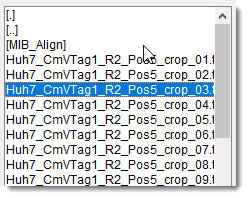
The major part of the panel is occupied by a list box that displays files in the selected directory,
chosen from the Load button of the Home ribbon the Working directory of the Status Bar.
Files are filtered based on the specified filter.
Selecting displays all readable formats.
- Double-clicking changes the folder to the top level of the current logical drive.
- Double-clicking changes the folder to one level up.
- Double-clicking navigates MIB into the clicked directory and shows files inside it
(MIB_Alignfolder in the snapshot)
- Double-
a file loads it into MIB and displays it in the Image Document. - Select individual datasets by holding or
and clicking
on files. Load them via the context menu (Combine selected datasets, see below for details and options). - To load zarr3 BigData type dataset - select the directory (
*.zarr3) and open it using Combine selected datasets option of the context menu
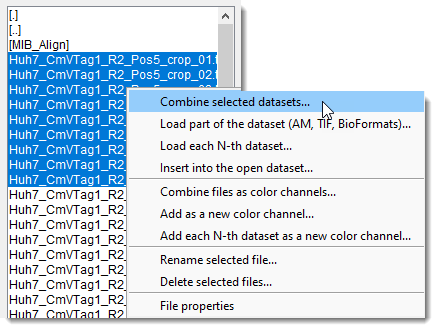
The context menu, accessed with
- Combine selected datasets: combine selected datasets into a single 3D stack.
Working with OME-Zarr
It is possible to open OME-Zarr version 2 or version 3 (MIB version 2.92 beta 8 or newer).
To open the dataset:
- make sure that the directory has
.zarr,.zarr2,.zarr3ending - select the directory using the
- open the OME-Zarr dataset using the
Combine selected datasetsoption
A plain .zarr ending does not say which zarr version the store uses, so MIB detects
it from the store itself and picks the matching reader.
Nested containers. Many stores keep the image group below the root rather than at it,
for example the MoBIE / OpenOrganelle layout where the pyramid lives in
<name>.zarr/recon-1/em/fibsem-uint8, or an OME-Zarr label container. Select the top
.zarr directory as usual - MIB searches the container and opens the image group it
finds. When a container holds several image groups (an image plus its labels, several
channels, ...), a dialog lists them so you can choose which one to open.
- Load part of the dataset (AM, TIF, BioFormats): load a specific part of a larger dataset, defining start/end points, z-step, and XY binning (available for Amira Mesh, TIF, and BioFormats-readable datasets) demo.
- Load each N-th dataset: assemble every N-th file into a 3D stack.
- Insert into the open dataset: insert selected files into the currently open dataset.
- Combine as color channels: combine selected datasets into a single 2D slice, each assigned to a color channel.
- Add as a new color channel: add images as a new color channel to the existing dataset. Select channels in the View Settings panel.
- Add each N-th dataset as a new color channel: add images with an N-step as a new color channel to the existing dataset.
- Rename selected file: rename the selected file.
- Delete selected files: permanently delete selected files from the disk.
- File properties: show file details like date/time and size in bytes.
Filter
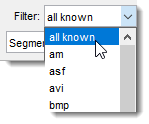
The dropdown allows filtering the file list
based on available image type filters.
Available extensions depend on whether the standard
or Bio-Formats reader is used and if
virtual mode is enabled, resulting in four filter configurations.
Modify extensions in the filter list
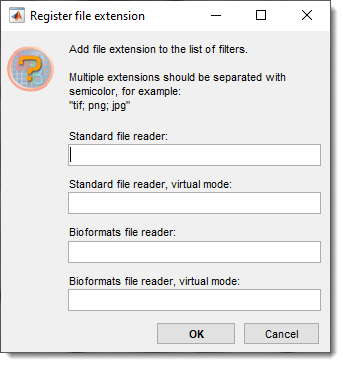
To modify file extensions the list of filters:
click over . - Choose an option:
- Register extension: add extensions to the filter list.
- Remove selected extension: remove a selected extension from the filter list.
Bio checkbox
When is checked,
the Bio-Formats reader loads datasets.
MIB supports specific biological image formats (native to various microscopes) via the
Bio-Formats Java library, stored in
the mib\jars\BioFormats directory.
Note
Performance of the Bio-Formats reader may be slower than standard native readers due to Java-related overheads.
Update button
The button refreshes the file list in the Directory Contents panel.
Help button
The button links to this help page.
Back to MIB | User interface | Panels