Navigation
Installation Instructions
If you have a MATLAB license it is recommended to use MIB for MATLAB environment distribution of MIB suitable for Windows, MacOS and Linux.
Otherwise use the standalone versions of MIB compiled for your operating system.
As they are compiled with our academic MATLAB license, the standalone versions are for non-commercial academic research only (see license).
Run Microscopy Image Browser as standalone (Windows, x64 bit)
Note! The screenshots on this page show the installer of MIB 2. The installation steps of MIB 3 are the same; we will update the screenshots as soon as possible.
- Requires 64-bit Windows
- Download the recent version of MIB 3 (MIB3_Win.zip)
and unzip it; the archive contains the installer, e.g.
MIB3_Win_260929_R2026a.exe. The releases can also be downloaded from the Releases section of the MIB 3 GitHub repository, which hosts the source code as well - Run the downloaded file and follow the instructions on screen to install MIB to your computer, requires administrative privileges. The required MATLAB Compiler Runtime
(MCR) environment will be automatically installed during the process.
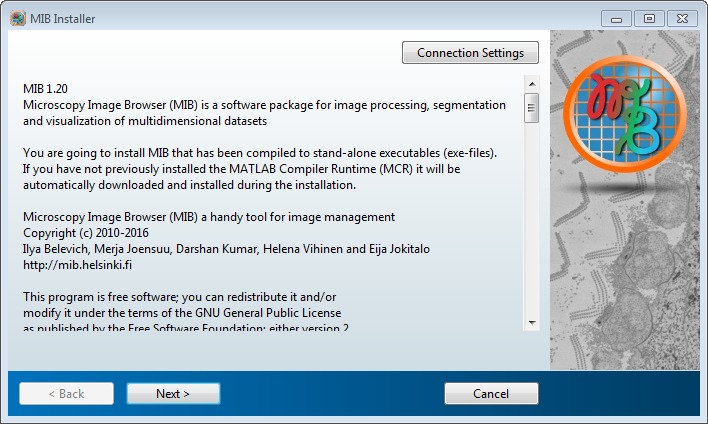
- Press Next
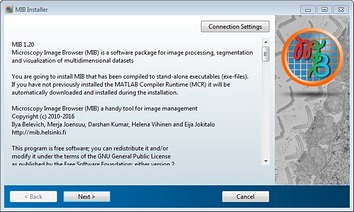
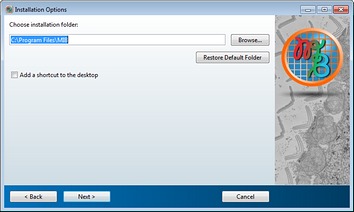
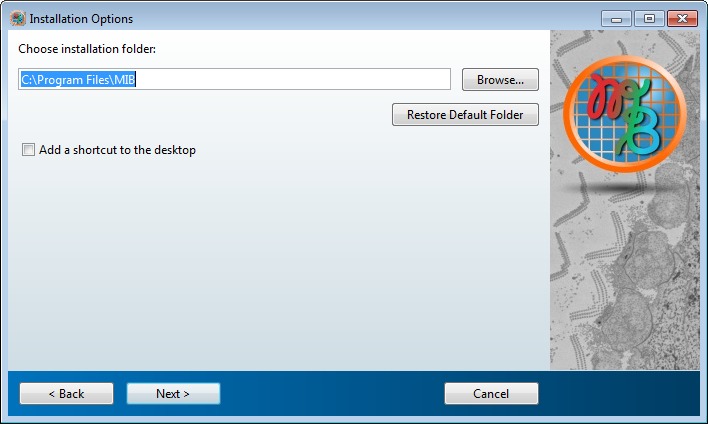
- Select installation directory
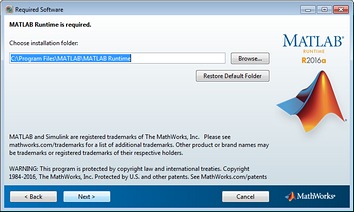
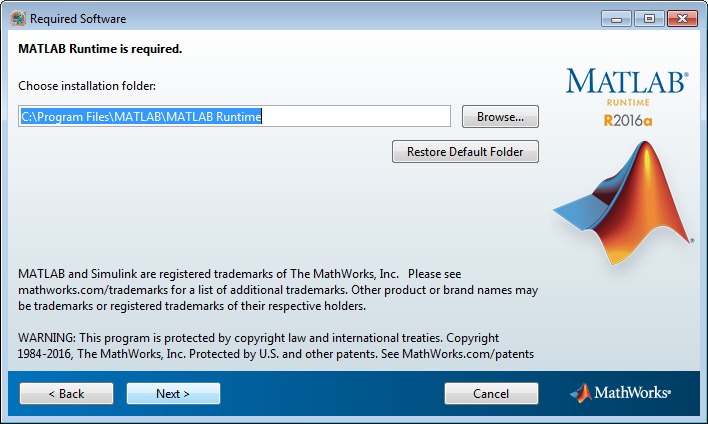
- If you have not previously installed the MATLAB Compiler Runtime (MCR) you will need to install it
Select installation directory of the MCR and press Next
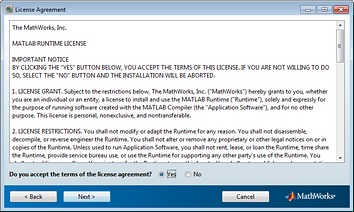
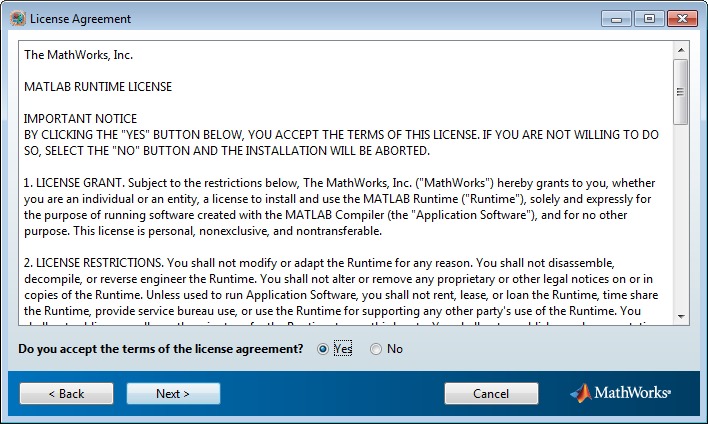
- Accept the license agreement and press Next
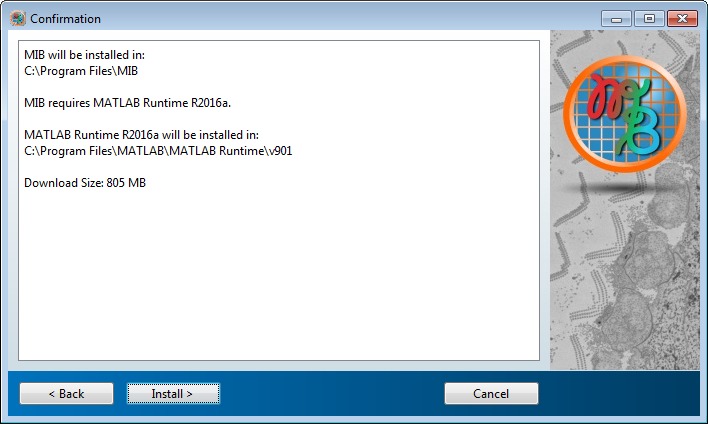
- Press Install to download and install MCR
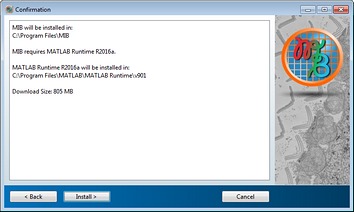
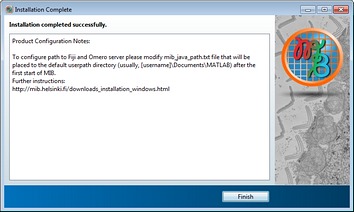
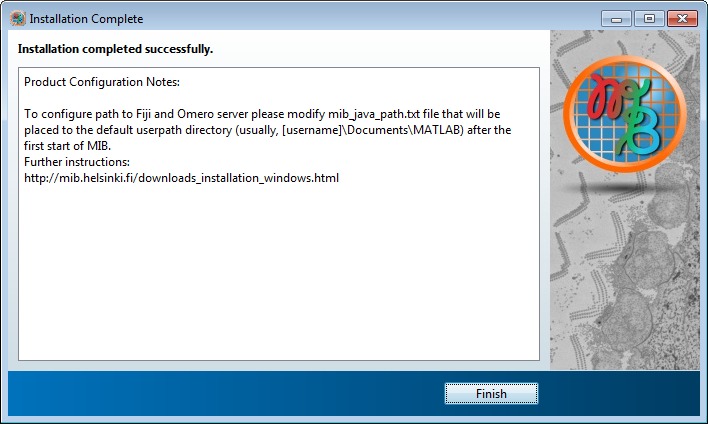
- Press Finish to quit the installer
if you want to use MIB with Fiji or Omero server please check the First start of MIB section below
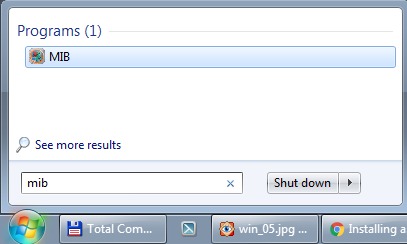
- After installation MIB will be available in the Start menu
First start of MIB 3
- Start MIB from the Start menu. A splash screen is shown while MIB starts; the very first start takes a bit longer, because the MATLAB Runtime is initialized
- MIB may show a few dialogs: where to keep your statistics (asked once on each computer), how to enable Java (MATLAB Runtime R2026b and newer) and whether to download a newer version. They are explained in First start of MIB 3
- To use MIB with Fiji or OMERO, add their installation directories to
MIB->Home->Preferences->External directories - Access help from
MIB->Home->Helpor the MIB 3 user guide; see also tutorials