Navigation
Installation Instructions
Contents
- Run Microscopy Image Browser as standalone (Linux, x64 bit)
- First start of MIB 3
- Issues and solutions
If you have a MATLAB license it is recommended to use MIB for MATLAB environment distribution of MIB suitable for Windows, MacOS and Linux. Otherwise use the standalone versions of MIB compiled for your operating system. As they are compiled with our academic MATLAB license, the standalone versions are for non-commercial academic research only (see license).
Run Microscopy Image Browser as standalone (Linux, x64 bit)
Compiled on Rocky Linux 9.8 (Blue Onyx) with MATLAB R2026a
Note! The screenshots on this page show the installer of MIB 2. The installation steps of MIB 3 are the same; we will update the screenshots as soon as possible.
- Requires 64-bit Linux
- Download the recent version of MIB 3 (MIB3_Linux.zip).
The releases can also be downloaded from the
Releases section of the MIB 3 GitHub repository, which hosts the source code as well
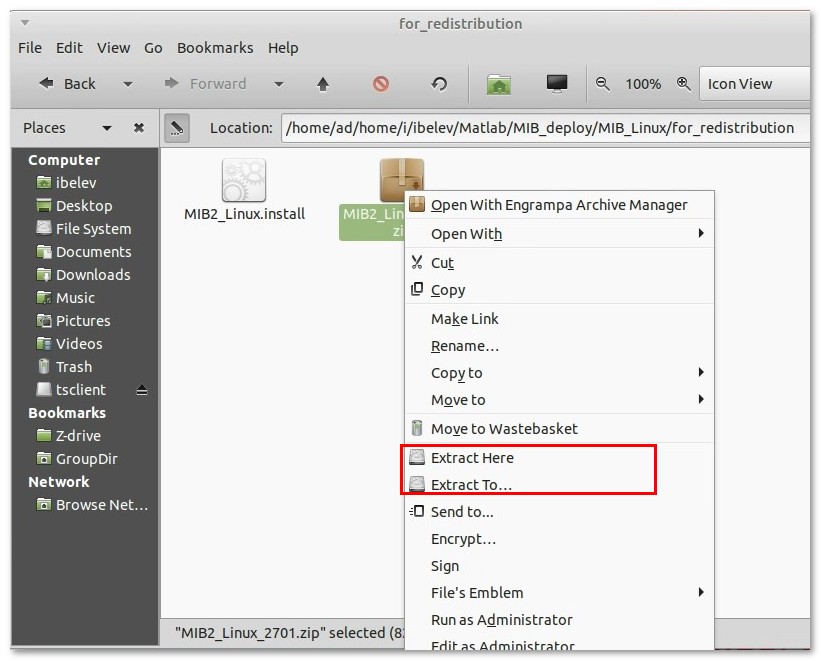
Note:MIB3_Linux.zipcontains the installer. If you prefer the compiled files of MIB without the installer, download them from the Releases section on GitHub; in this case the MATLAB Runtime R2026a has to be installed separately - Extract the installer, e.g.
MIB3_Linux_2026-10_R2026a.install, from the downloaded fileMIB3_Linux.zip.
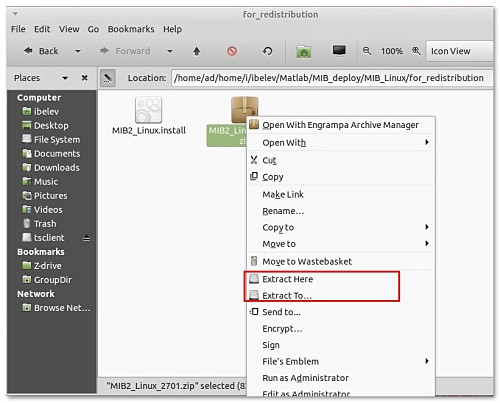
- Double click on the installer to start the installation process, or start it from a terminal window:
chmod +x MIB3_Linux_2026-10_R2026a.install
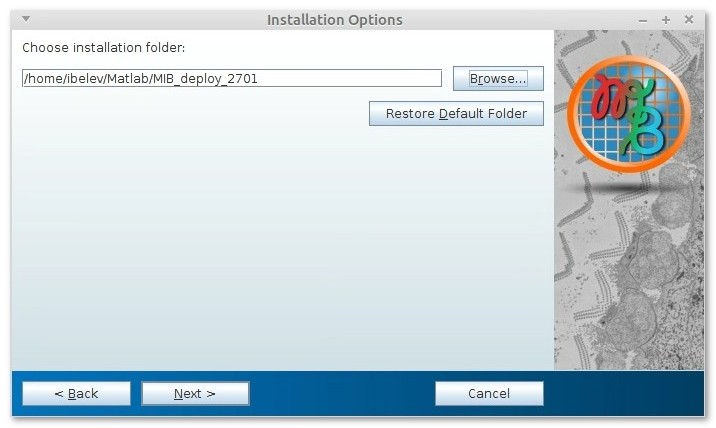
./MIB3_Linux_2026-10_R2026a.install - Choose the installation folder
(the default folder/usr/local/MIB3requires administrative privileges; it is recommended to install MIB into an own home directory as demonstrated on the snapshot)
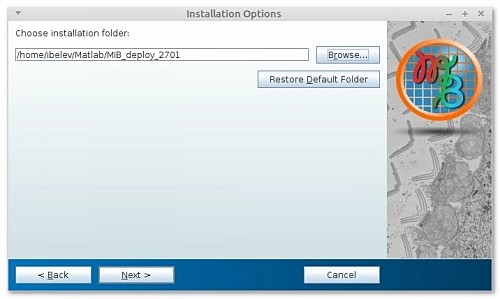
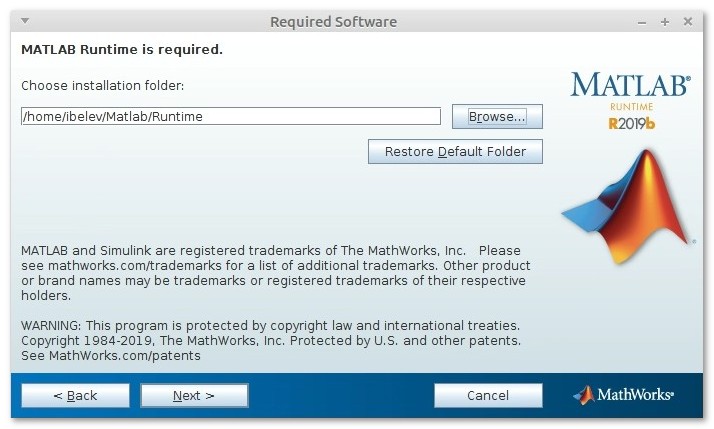
- Choose the installation folder for the MATLAB Runtime R2026a
(it is recommended to install it into an own home directory as demonstrated on the snapshot.
If the MATLAB Runtime R2026a is already installed, provide its location)
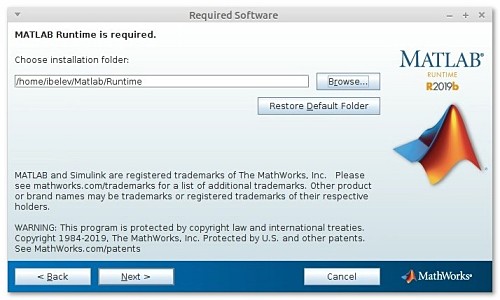
- Accept the license agreement and press Next
- Press Install to begin installation of MIB and the MATLAB Runtime
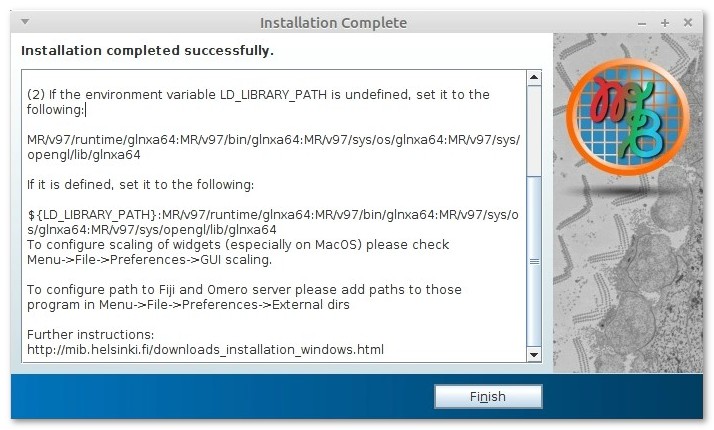
- Press Finish to quit the installer
optionally, some additional tweaks may also be applied
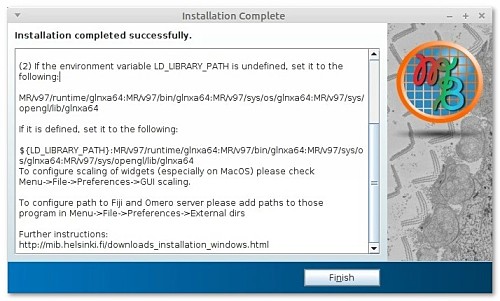
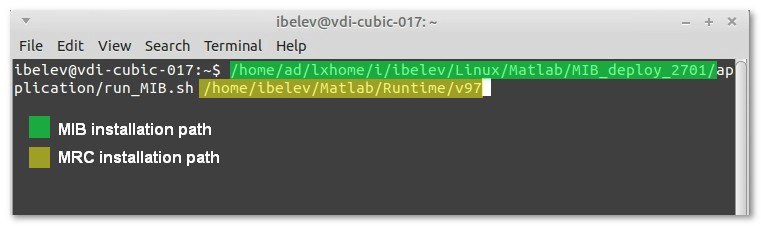
- Start MIB from a terminal window using the following syntax:
[MIB installation folder]/application/run_MIB3.sh [MATLAB Runtime folder]/R2026a
for example:
~/MIB3/application/run_MIB3.sh ~/MATLAB_Runtime/R2026a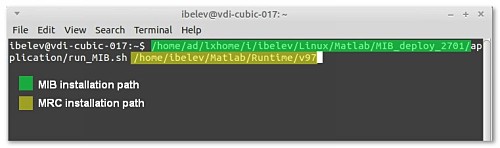
First start of MIB 3
- A splash screen is shown while MIB starts; the very first start takes a bit longer, because the MATLAB Runtime is initialized
- MIB may show a few dialogs: where to keep your statistics (asked once on each computer), how to enable Java (MATLAB Runtime R2026b and newer) and whether to download a newer version. They are explained in First start of MIB 3
- To use MIB with Fiji or OMERO, add their installation directories to
MIB->Home->Preferences->External directories - Access help from
MIB->Home->Helpor the MIB 3 user guide; see also tutorials
Issues and solutions
Problem: MATLAB crashes during start of training in DeepMIB
This issue was detected on a virtual machine when using MIB for MATLAB. When starting training of a network, MATLAB crashes with the "Could not initialize GLX" error.This can be fixed by
- forcing nosoftwareopengl by starting MATLAB from terminal using this command:
>> matlab -nosoftwareopengl - or switching off the training progress plot:
Train tab->Training->Plots->none
Problem: MIB in Singularity container does not see GPU
This issue was detected on a virtual machine when using the compiled MIB inside a Singularity container. When starting DeepMIB, the GPU card was not detected.This can be fixed by
- modifying the
run_MIB3.shfile by adding
LD_LIBRARY_PATH=${LD_LIBRARY_PATH}:/.singularity.d/libs;
just beforeexport LD_LIBRARY_PATH; - starting the MIB Singularity container as
singularity exec --nv /path/to/the/container
the --nv key makes the NVIDIA driver libraries available inside the container at /.singularity.d/libs.